Special Offer: Edit 20 Images for Only $4.99! Edit 20 Images for Only $4.99!
Menu editing guide

Edit Menu Price in Image Online: A Practical Guide

Edit menu price in image online when a restaurant only has a finished JPG, PNG, or WebP. Select the old line, enter the exact replacement, and compare the generated image with nearby dishes. This guide helps restaurant owners and retail teams preserve a price column and recognize when the original design or POS system is the better source.

Quick answer

To edit a menu price in an image online, upload the clearest menu image, select the complete old price with its currency symbol and decimal, enter the new value in the same format, and compare it with nearby rows. This is best for one contained line, not a live QR menu, POS, receipt, invoice, or editable design file. Confirm the final amount against the price you actually charge before publishing.

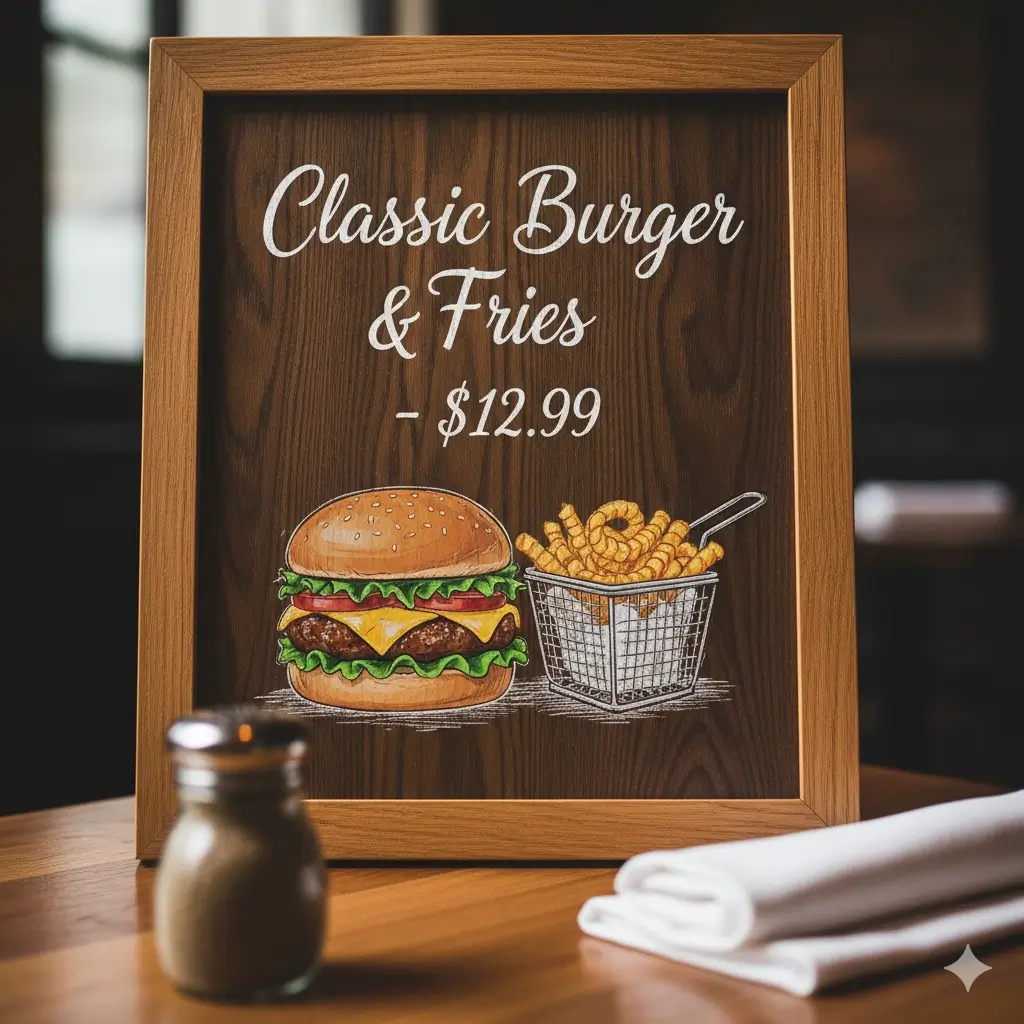
Restaurant menu image before a price replacement

Before: a finished menu with an old price

Start with the original export or a sharp front-facing photo. Clear digits and a visible price column make the edit easier to inspect.
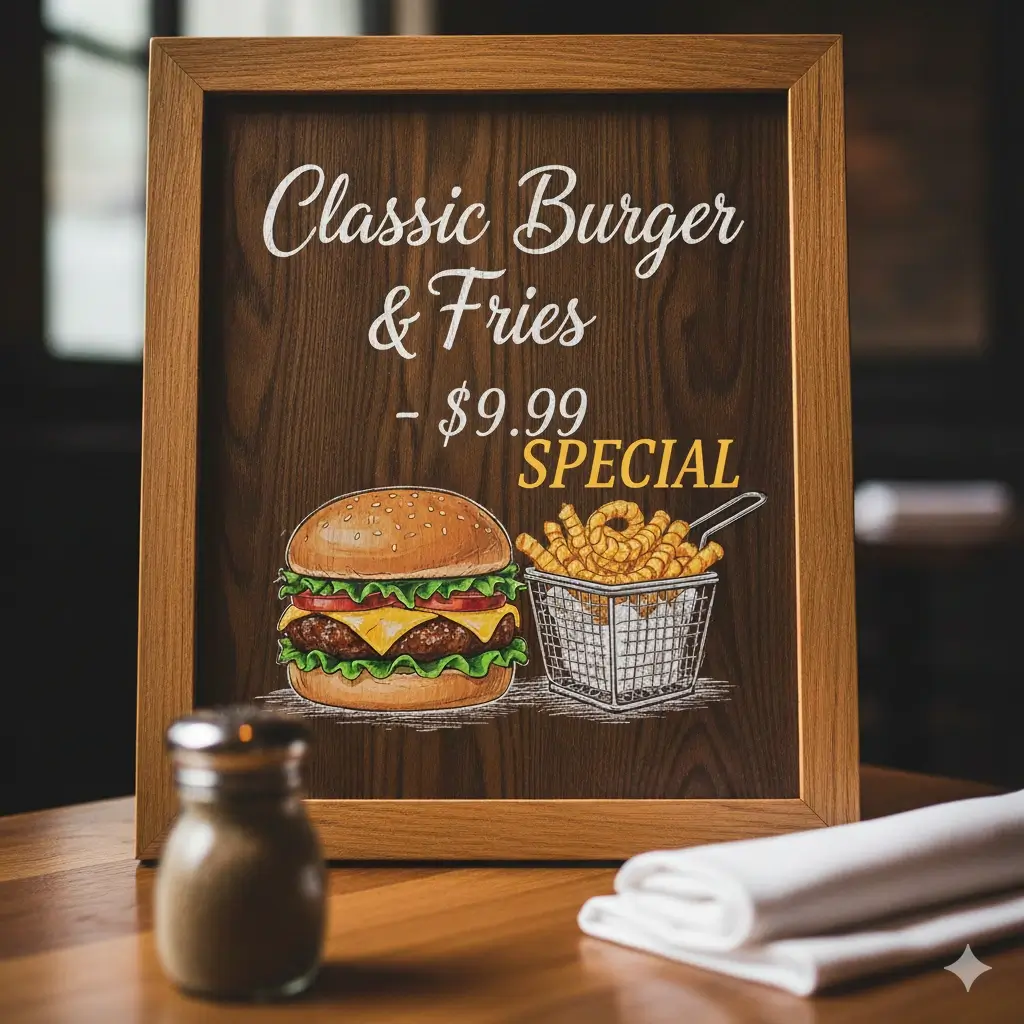
Restaurant menu image after a price replacement

After: compare the replacement with its neighbors

A usable result keeps the currency mark, decimal style, baseline, leader dots, and nearby rows consistent. Zoom in before publishing.

How to edit menu price in image online

Step 1

Choose the cleanest menu image you have

Use the original export instead of a screenshot sent through messaging when possible. JPG, PNG, and WebP can work, but readable contrast matters more than the extension. If glare, shadows, perspective, or compression hides the decimal point, fix the source or return to the design file before a customer-facing change.

Step 2

Select one complete price line

Draw a tight selection around the price, including its currency symbol, decimal point, and trailing zero. Do not select the whole column or nearby dish description. One contained edit preserves spacing, dividers, illustrations, and the row background. With leader dots, include enough of the line for alignment but keep unrelated prices outside.

Step 3

Enter the exact new amount

Type the new price exactly as customers should see it. Match the currency, decimal separator, number of places, and spacing. For example, replace $9.50 with $11.00 instead of mixing a dollar sign with a comma format. Keep the replacement close in length so the row does not crowd or leave an awkward gap.

Step 4

Generate, compare, and verify before publishing

Review the replacement at 100% and at customer size. Compare baseline, weight, color, currency mark, decimal, and spacing with nearby rows. Check for ghost digits, patches, or background seams. Confirm the amount against the register, ordering system, or approved price list, then archive the previous image. If it is unstable, use a tighter selection or the source design.

Which menu parts are a good fit?

Menu text does not all have the same visual risk. Short, readable lines with a clear background are easier to replace than tiny multi-column copy. Use this table to decide whether an image edit is sensible or whether the source file needs to be opened.

Menu part Good fit when Watch for
Single price The currency mark, digits, and decimal are readable and sit in a regular price column. A longer replacement can push past leader dots or the neighboring row.
Dish or drink name The name is short, horizontal, and separated from descriptions and decorative elements. A much longer name may wrap, collide with the price, or change the intended meaning.
Daily special The special is one clear line on a board, poster, or social menu graphic. Recheck dates, availability, allergens, and promotional conditions before reuse.
Category heading The heading is large, short, and has enough background around the letters. Letter spacing, capitalization, and decorative fonts can make a replacement look uneven.
Description or fine print Only a short typo or approved phrase needs correction in a high-resolution export. Tiny text, allergen notes, and long rewrites are safer in the source design or menu system.

Price and menu checks before you publish

The visual edit is only one part of a credible menu update. Run a short content and layout check so the new image agrees with the information customers and staff rely on.

Currency and decimals

Confirm the symbol, decimal separator, trailing zero, and thousands separator match the market and the rest of the menu. A visually plausible number can still be wrong for the local format.

Column alignment

Compare the new price with the rows above and below. The baseline, right edge, leader dots, and distance from the dish name should still look intentional at normal viewing size.

Customer-facing truth

Verify the amount against the register, approved price sheet, or ordering platform. An image editor cannot know whether the restaurant actually changed the price.

Specials and dates

If the image includes a daily special, seasonal item, or expiry date, check availability and timing separately. Do not carry an outdated promotion into a new export.

Dietary and allergen text

Treat ingredient, allergen, and dietary labels as approved content. Use the restaurant's source of truth and recheck every character after generation.

Version history

Save the old menu image and note the change so staff can explain the update and restore the source if needed.

Choose the right way to update a menu

Editing one baked-in line is useful when the source file is missing, but it is not the best method for every menu change. Match the workflow to the number of changes and the system that owns the content.

Method Best for Main limits
AI image text editor One price, dish name, special, or heading in a flattened JPG, PNG, or WebP when a fast visual correction is needed. You must verify the generated characters and it is not an editable menu template or POS update.
Original design file Several prices, a new section, a layout change, translation, or any update that needs live layers and exact typography. Requires access to Canva, Photoshop, Figma, Illustrator, or the source system and takes more design time.
Live menu or POS system QR menus, online ordering, tax rules, inventory-linked prices, and customer-facing content that must stay synchronized. Does not automatically repair a previously exported social image or printed menu photo.

How to get a cleaner menu price edit

After you edit menu price in image online, a focused review keeps the result inside the menu's existing visual language. These habits reduce retries and make one price change easier to approve.

  • Start from the highest-resolution export, not a screenshot of a screenshot.
  • Select the complete price, including its currency symbol and decimal point.
  • Keep the replacement close in length and decimal style to the old value.
  • Edit one line at a time when several prices changed, then compare every row.
  • Zoom to 100% to inspect ghost digits, edges, baselines, and leader dots.
  • Keep the surrounding dish name, description, and section heading outside the selection.
  • Store the old image and the approved new price beside the exported result.

Related image text workflows

Edit any number in an image

Use the number editor for prices, dates, scores, IDs, phone numbers, and other numeric labels outside a menu-specific workflow.

Open Number Editor

Replace broader image text

Choose the general text changer when the image contains a short word, label, or sentence rather than one menu line.

Open Text Changer

Update a product image

Use the product workflow for packaging, marketplace graphics, variants, labels, and ecommerce photos that are not menus.

Open Product Editor

Match a familiar font feel

Read the same-font workflow when the typography and spacing matter more than a menu-specific use case.

Open Same-Font Guide

Compare plans and credits

Check available plans before processing a batch of approved menu updates or related image edits.

See Pricing

Common menu editing mistakes

Editing the wrong system

A flattened menu image is only one customer touchpoint. If a QR menu, POS, website, or printed master still shows the old amount, update the system that owns the content as well.

Selecting the whole menu column

Large selections can disturb neighboring dishes, dividers, illustrations, and background texture. Keep the target to one complete price or short line.

Changing the number format by accident

Switching from $9.50 to 9,50 or dropping a trailing zero can look like a typo even when the numeric value is close. Match the original format and local convention.

Skipping the second check

AI output can make a digit, decimal, or currency symbol look plausible while being wrong. Compare the result with the approved price list before publishing.

Rewriting many lines with an image edit

A multi-line redesign, translation, or new section belongs in the original design or live menu system.

FAQ: edit menu price in image online

Ready to update one menu line?

Open the editor with the clearest approved menu image you have, change one complete line, and verify the result against the price your customers should see.