
AI Image Text Editor Online
Use AI to edit text already embedded in a finished image. Upload a JPG, PNG, WebP, or screenshot, mark the old words, enter new copy, and generate a cleaner replacement without rebuilding the whole design.
Upload Your Image
Drag & drop or click to upload
Supports: JPG, PNG, JPEG, WebP (Max 20MB)
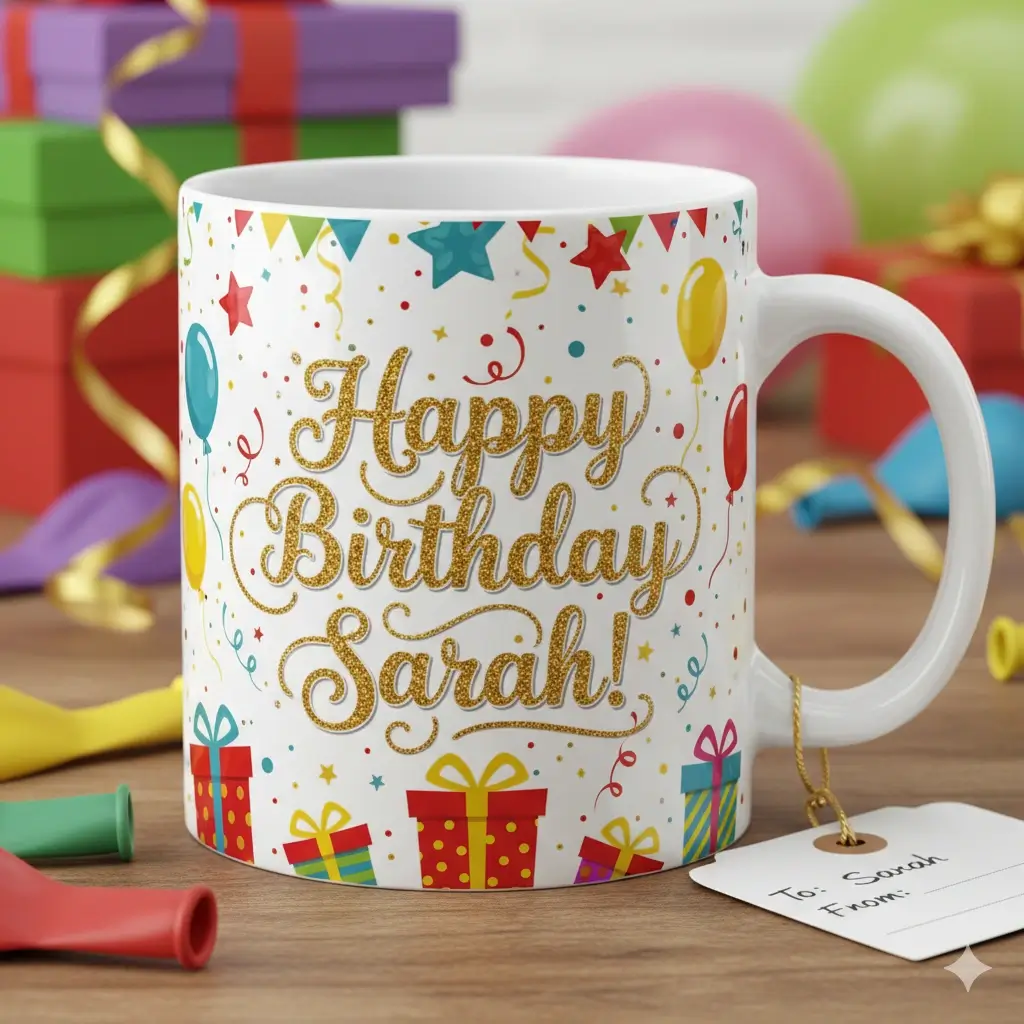
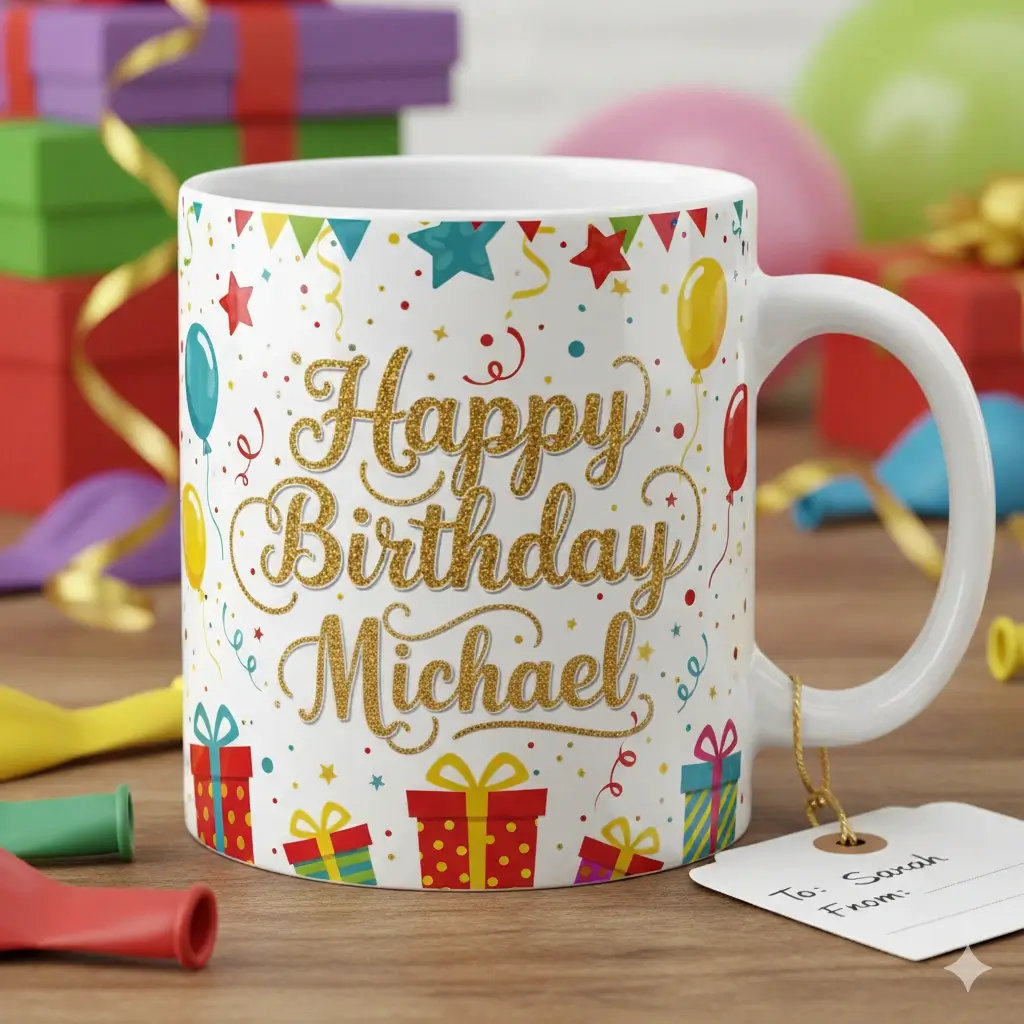
The selected wording changes while nearby layout and design details stay in place.
Upload an image, mark the text area, and enter the replacement copy.
Drag to adjust the text selection area
Edit text in your image with AI
Your Image Preview
Upload an image to start editing
Processing Your Image...
This usually takes 30-60 seconds
How to use an AI image text editor
The editor is designed for finished images where the original text layer is no longer available. It combines a visible selection with your replacement wording so the AI knows what to change and what to preserve.
Upload the finished image
Choose a JPG, JPEG, PNG, WebP, or screenshot. Clear text, reasonable resolution, and a background that is not too busy give the AI more visual information to work with.
Mark the old words and write the new copy
Drag over the complete text area, including a little surrounding margin, then enter the replacement wording. Keep the new phrase concise and check spelling before generating.
Review and download the result
The AI attempts to remove the selected words, rebuild the pixels underneath, and blend the replacement into the image. Review the preview before downloading or publishing it.
What this AI image text editor can do
An AI text editor in an image is useful when the design file is missing but one short piece of wording still needs to change. The page keeps the workflow focused on that practical edit.
Edit flattened image text
Work with words that are already part of the pixels in a photo, screenshot, menu, label, banner, or exported design.
Repair the area behind the words
The AI tries to reconstruct simple colors, gradients, textures, shadows, and edges after removing the selected text.
Preserve surrounding details
The prompt asks the editor to keep unselected text, objects, faces, borders, products, and layout details unchanged.
Match the nearby visual style
Replacement text is generated with the surrounding font feel, color, weight, spacing, alignment, and antialiasing in mind.
Handle common image formats
Use JPG, JPEG, PNG, WebP, and screenshots when the wording is readable and the image can be uploaded successfully.
Support quick practical variants
Change prices, dates, names, labels, status words, short headings, and campaign copy without recreating the complete composition.
Inputs, outputs, and limits
AI editing is strongest when the task is narrow and the selected words are clear. Treat the generated image as a draft to review, especially when the content is important or public-facing.
Best inputs
- Readable text with enough pixels for the AI to recognize its shape
- A selection that covers every old letter plus a small surrounding margin
- Short replacement wording that fits naturally in the original area
- Simple colors, gradients, or textures behind the selected text
- JPG, JPEG, PNG, WebP, or a clear screenshot
- A copy of the original image kept for comparison and recovery
Good use cases
- Update a price, date, name, or product label
- Correct a short typo in a poster, menu, sign, or notice
- Create a campaign variant from a finished social graphic
- Edit a short label in a screenshot for a demo or guide
- Change a status word or version label in a product image
- Prepare a quick mockup when the editable design file is missing
The editor does not guarantee exact font recovery, perfect text rendering, or a faithful result on complex backgrounds. Do not use generated edits to falsify receipts, certificates, identity documents, medical results, or other records.
When to edit image text with AI
Choose the workflow based on what you need to do with the existing words. This page is for changing selected text, not for adding a new caption layer or extracting text with OCR.
Menus and price lists
Change one price, item name, store hour, or short note in a finished menu image without rebuilding the layout.
Product labels and photos
Update a variant name, flavor, model label, or short ecommerce phrase inside a product graphic.
Ads and social graphics
Create a date, offer, deadline, or campaign-copy variant while keeping the familiar design around it.
Screenshots and UI captures
Edit a short label, number, or date in a screenshot for a support draft, presentation, or product demo.
Posters and signs
Correct an event detail, opening hour, status message, or short public notice in a flattened image.
Personalized mockups
Prepare quick name, message, or label variants for a preview while retaining the original file for final production.
AI image text editor FAQ
Choose the right image text workflow
Use a related page when your intent is more specific than AI image text editing.
Edit image text with AI now
Upload a finished image, mark the old wording, enter a replacement, and review the generated result in one focused workflow.
Use the editor with clear expectations
Review before publishing
AI output can vary with image quality and background complexity. Check spelling, layout, and artifacts before sharing the result.
Keep the original
Save the source image so you can compare versions or return to a manual editor when the change needs pixel-perfect control.
Use narrow selections
Selecting only the words and a small margin helps the model preserve nearby objects and unselected text.
Runs in a browser workflow
Upload, select, generate, preview, and download from the same page without requiring the original design file.