Photext Alternative for Editing Image Text Online
Need a Photext alternative when you only have a finished image? Upload a JPG, PNG, JPEG, or WebP file, mark the text you want to change, type the replacement, and let the AI rebuild the background while matching the original font feel, color, spacing, and layout as closely as possible.
Upload Your Image
Drag & drop or click to upload
Supports: JPG, PNG, JPEG, WebP (Max 20MB)
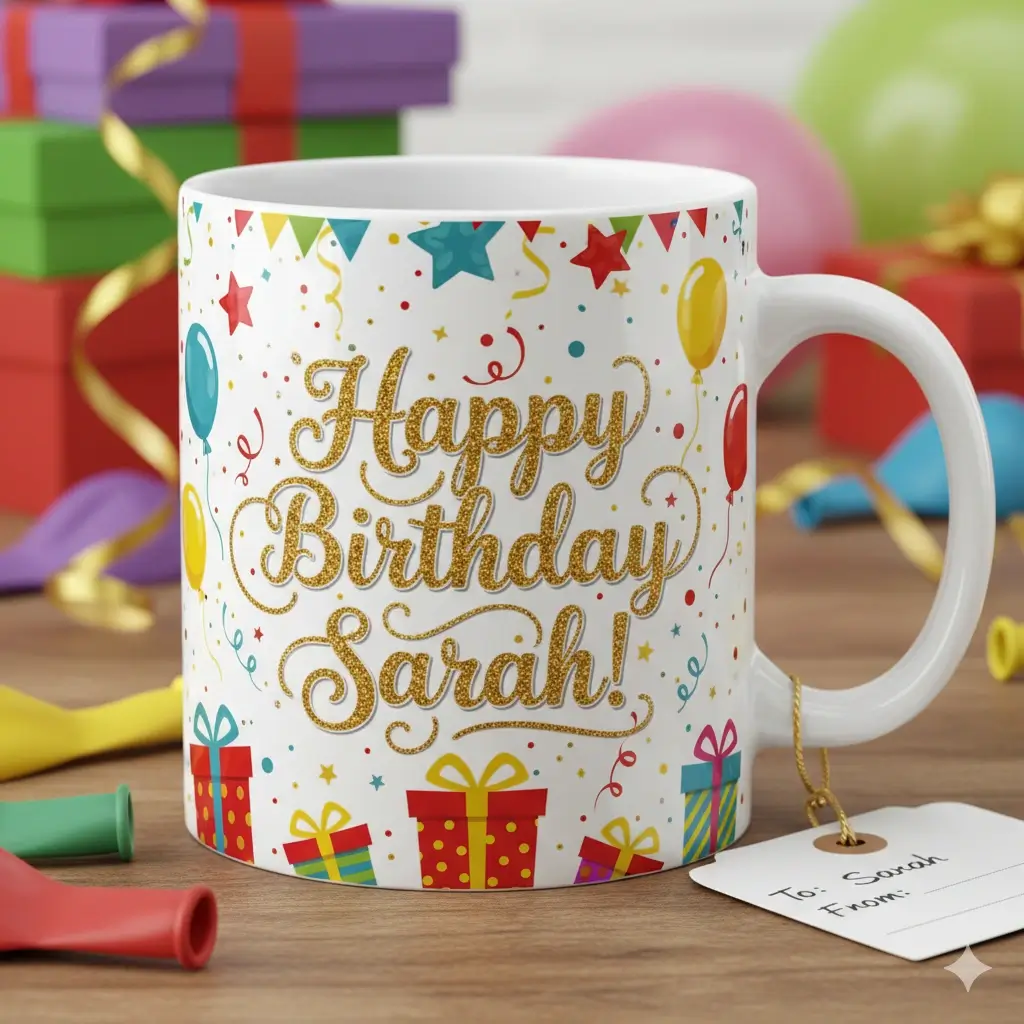
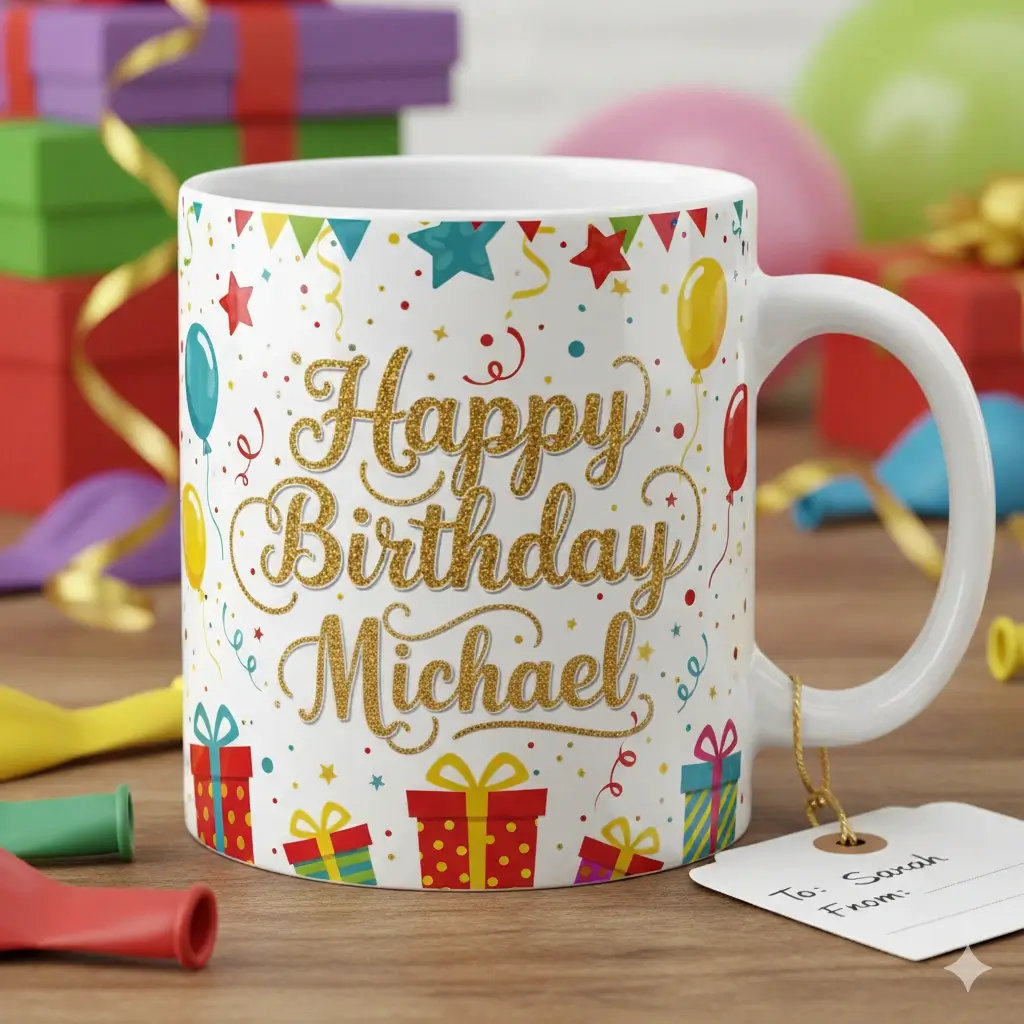
Replace baked-in wording instead of covering it with a rough text box.
Select the old text, enter the new copy, and generate an edited image online.
Drag to adjust the text selection area
Photext Alternative for Editing Image Text Online
Your Image Preview
Upload an image to start editing
Processing Your Image...
This usually takes 30-60 seconds
How to Use This Photext Alternative
Upload the image you need to fix
Start with the finished image file you already have. This works best for short text changes in product images, screenshots, menu graphics, signs, posters, social posts, and other flattened exports.
Mark the old text and enter the replacement
Draw a selection around only the words that need to change. Then type the new text you want in the same area so the AI has clear boundaries for background repair and style matching.
Generate, review, and download
The tool removes the old text, fills the selected background, and places the new wording back into the image. Review the result, retry with a tighter selection if needed, then download the edited file.
A practical Photext alternative for real image text replacement
Many users looking for Photext, PhotoText, or Photext Shop do not need a full design suite. They need to change text that is already part of an image. This page keeps the working editor at the top, then explains when AI replacement is better than a manual overlay, when a JPG or PNG page is a better fit, and what limits to expect from flattened image text.
Photext Alternative Use Cases
Use these examples to decide whether a quick AI text edit is enough or whether you should rebuild the original design source.
Product label text fix
Correct a variant name, flavor, short claim, or badge copy in a product image without recreating the mockup.
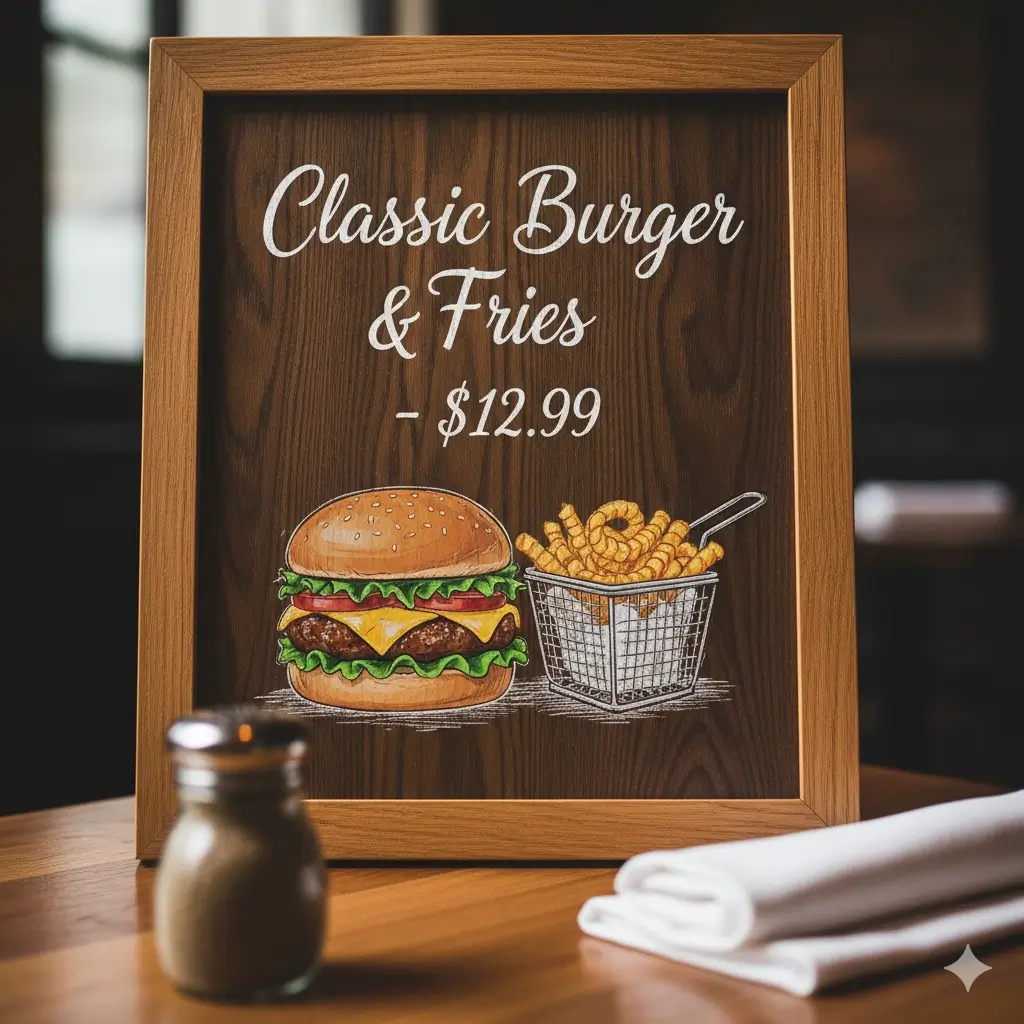
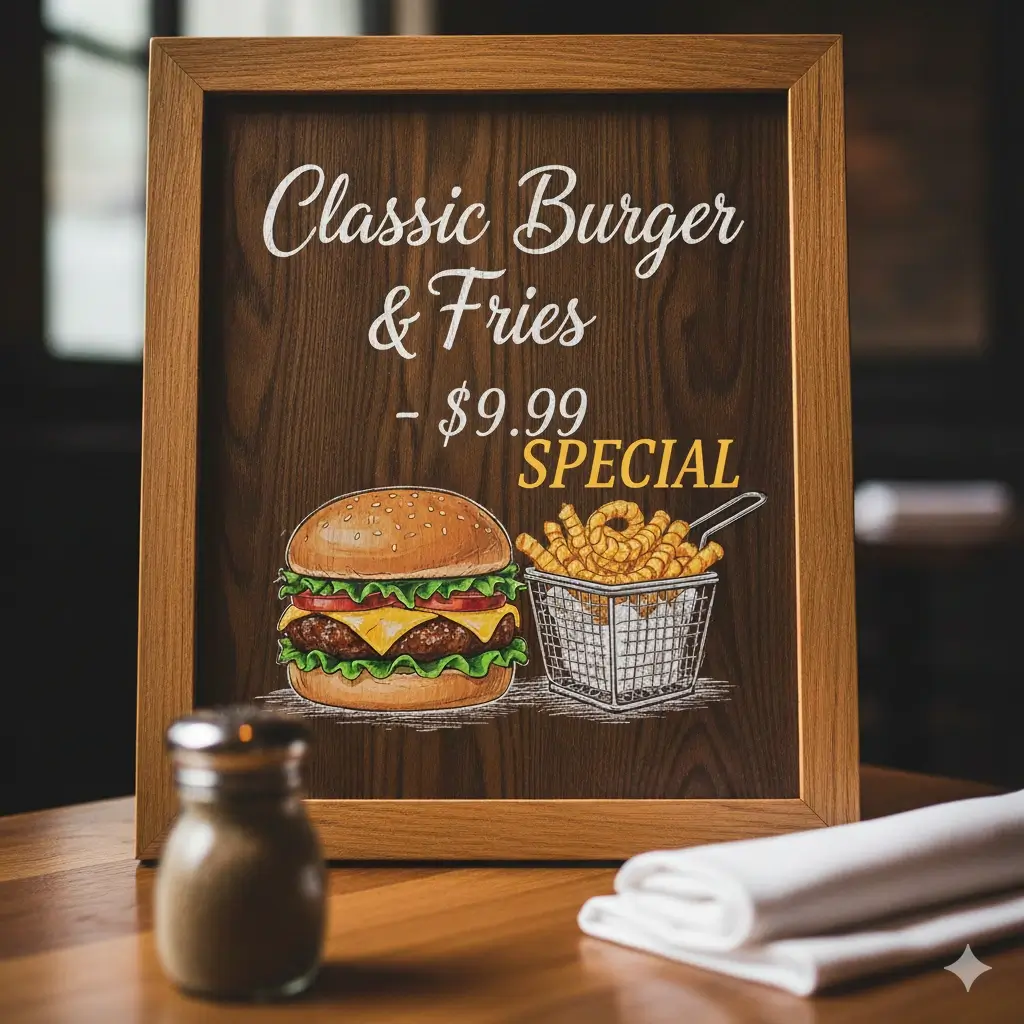
Menu price update
Change one price or menu item in a restaurant graphic while keeping the background and layout consistent.


Sale banner replacement
Update a discount, deadline, or CTA in a social or ecommerce banner after the design has already been exported.
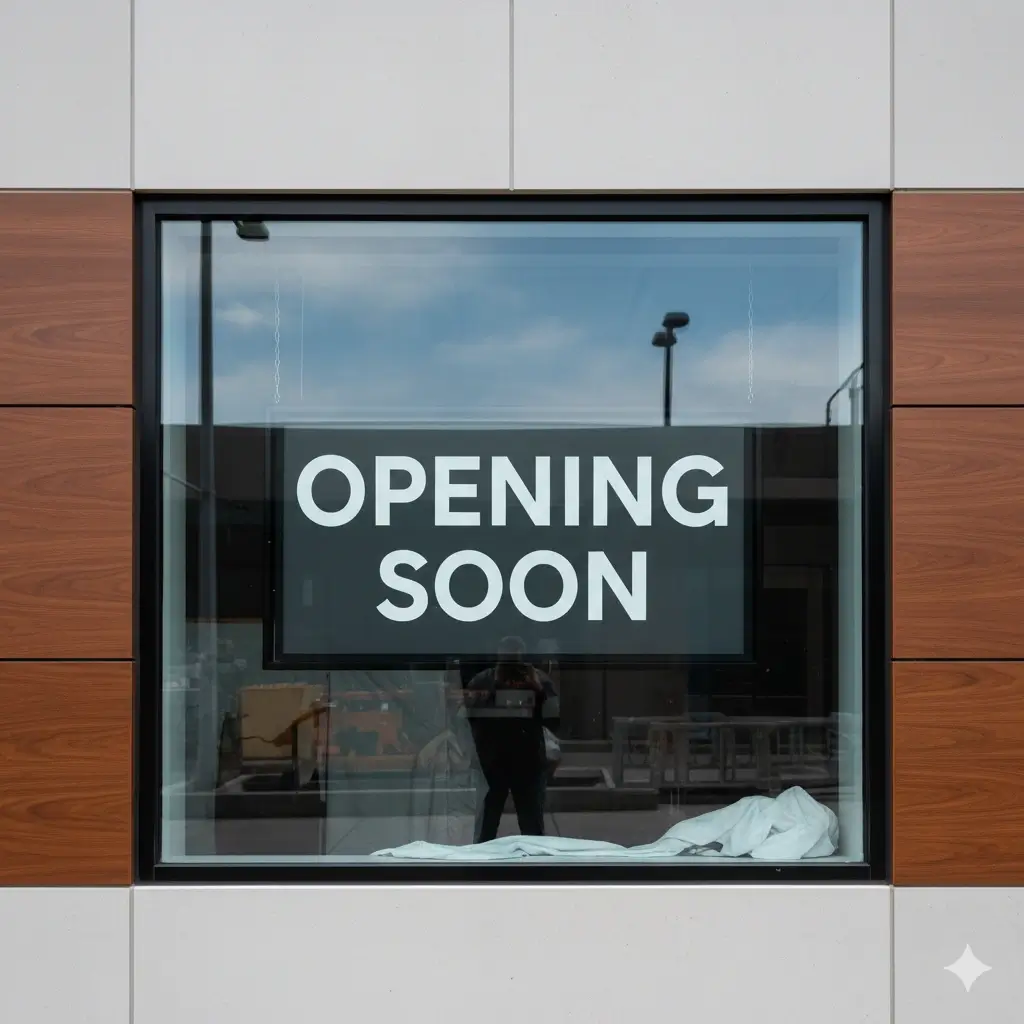
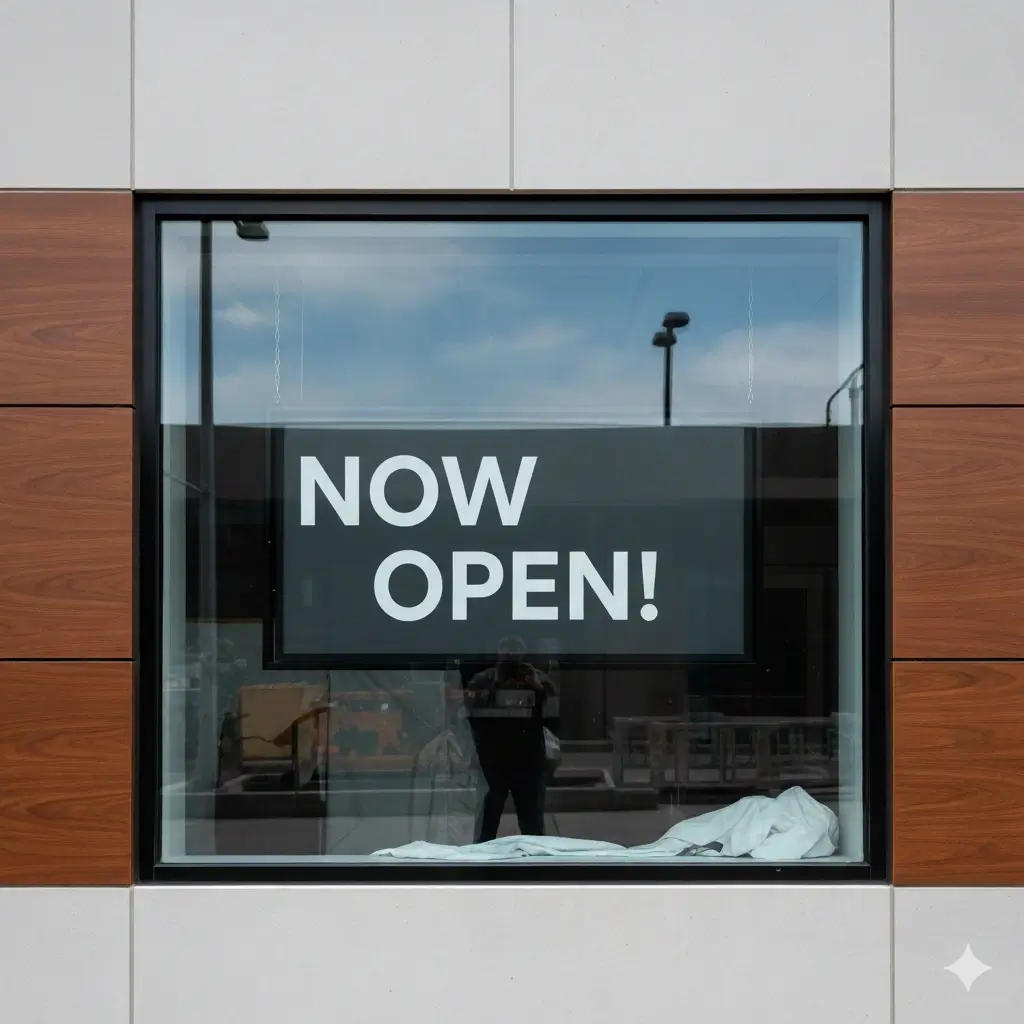
Sign or notice edit
Fix short text on a storefront sign, office notice, event poster, or announcement image.
What This Photext Alternative Helps You Do
Replace Text in Images
Select the existing wording and enter the replacement text instead of rebuilding the whole design from scratch.
Repair the Background
The editor focuses on removing the old letters and restoring the pixels behind them before placing the new wording.
Match the Original Style
AI tries to keep the replacement close to the original font feel, size, color, alignment, spacing, and visual tone.
Edit JPG, PNG, JPEG, and WebP
Use one browser workflow for common image formats while still choosing a format-specific page when you need extra guidance.
Handle Practical Business Edits
Update prices, names, dates, screenshot labels, button copy, labels, signs, and short marketing lines quickly.
Avoid Heavy Software
No Photoshop install, manual masking, font hunting, or layered source file is required for many small image text fixes.
Photext Alternative vs Common Image Text Editing Options
Choose the workflow based on what you actually need to change in the image.
| Option | Best for | Editing note | Next step |
|---|---|---|---|
| This Photext alternative | Replacing baked-in text in JPG, PNG, JPEG, or WebP images | Best when the old wording must disappear and the new words need to blend into the same area. | Current Page |
| Same Font Editor | Edits where font feel, weight, spacing, and color are the main priority | Use this when the visual match matters more than the file format. | Open Same Font Page |
| JPG Text Editor | Compressed photos, product shots, and marketing JPG files | Compression can soften letters, so JPG-specific guidance helps set better expectations. | Open JPG Editor |
| Remove Text Tool | Cleaning unwanted text without adding replacement words | Use this when the goal is removal rather than replacement. | Remove Text |
When a Photext Alternative Works Best
You only have the exported image
The source file is gone, but the image still needs one small text change before publishing.
You need the old text removed
A new label over the old words would look obvious, so the selected area needs background repair first.
The replacement is short
Short, similar-length text gives the AI more room to preserve layout, spacing, and readability.
The background is readable
Simple colors, moderate texture, and clear letter edges usually produce better results than tiny blurry text or complex shadows.
You need a browser workflow
Use it from a web browser without opening a desktop design application or installing extra software.
You want related format pages
Move to the JPG, PNG, JPEG, or WebP page when your source format needs more specific editing advice.
Inputs, Outputs, and Limits
Good inputs for this editor
- JPG, JPEG, PNG, and WebP images with readable text
- Short words, dates, numbers, prices, product labels, or button copy
- Text that sits on a simple or moderately detailed background
- Replacement wording that fits the original text area
- Images where the selected region can be isolated cleanly
Important limits to know
- Flattened images do not store editable text layers
- Exact font recovery is not guaranteed from pixels alone
- Tiny, blurry, angled, or heavily shadowed text can reduce quality
- Long replacement copy may not fit the original layout
- For legal, medical, financial, or official documents, verify accuracy before use
FAQ: Photext Alternative
Try This Photext Alternative
Upload your image, replace the old text, and create a cleaner edit without opening heavy design software.
Why This Page Fits Photext Alternative Searches
Tool first
The editor appears near the top so you can test the workflow before reading long guidance.
Clear keyword boundary
The page focuses on Photext alternative intent and links to existing format pages instead of duplicating them.
Practical limits
The copy explains what works, what fails, and why flattened text cannot be edited like a document layer.
Related workflows
Internal links route users to JPG, PNG, replace-text, same-font, and removal pages when those intents are stronger.