Canva workflow guide

Canva Edit Text in Image: Editable Text vs Flat Images

Canva is excellent when the text is a Canva text box. It is less direct when the words are already baked into an uploaded JPG, PNG, screenshot, poster, or product photo. Before you spend time trying every menu, first decide whether the text is editable, extractable, or only pixels that need repair. This guide explains the difference and shows when to stay in Canva, when to try Grab Text, and when an AI image text editor is the cleaner route.

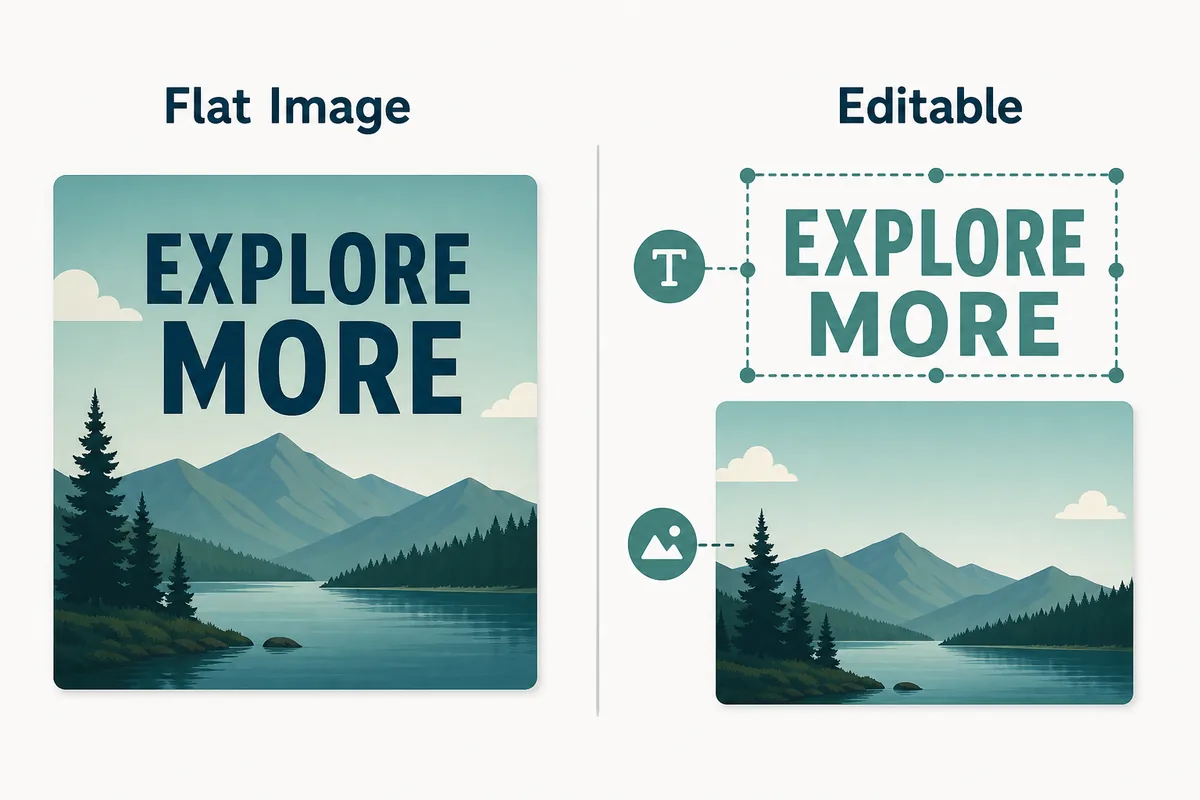
Editorial comparison of flat image text and editable text layers
The key decision is whether the wording is a live text layer or part of a flattened image.

Quick answer

If the text was created inside Canva, select the text box and edit it directly. If the text is part of an uploaded image, Canva may help extract or remove it in some cases, but it is not the same as editing a live text layer. For a finished JPG, PNG, WebP, or screenshot where the old words must be replaced naturally, use an AI workflow that removes the old text, repairs the background, and blends in the new wording.

First identify what kind of text you have

Most failed Canva edits come from treating a flat image like a layered design. A Canva project can contain editable text boxes, images, and effects. A downloaded or uploaded picture usually contains only pixels, so the original font and spacing are no longer editable as text.

What you have Best path Why it fits
A Canva design with a text box Edit the text box in Canva The text remains live, so you can change words, font, size, color, spacing, and alignment.
An uploaded image that contains readable text Try Canva Grab Text or OCR-style extraction This may help recover wording for reuse, but the result may not preserve the original background and typography perfectly.
A flat JPG, PNG, WebP, or screenshot Use AI text replacement The job is not just typing new words; it also requires removing old pixels and rebuilding the area behind them.

How to edit image text around Canva

Step 1

Click the text and check if a text box appears

If Canva shows a bounding box with editable text controls, you are working with a live text layer. Edit it normally, then adjust font, line height, spacing, color, and position.

Step 2

If it is an uploaded image, test extraction before redesigning

When the words are inside a photo or screenshot, try Canva text extraction or Magic Studio options if they are available in your account. Use this for rough recovery or quick layout experiments, not as a guarantee of perfect same-font replacement.

Step 3

For baked-in words, choose an AI repair workflow

Upload the image to ImageTextEdit, mark the old wording, type the replacement, and generate a result. This works best for short labels, menu prices, poster dates, product text, screenshots, and social graphics.

Step 4

Bring the edited image back to Canva if needed

After replacing the text, download the edited image and upload it back into Canva when you still need to add layout elements, resize for social channels, or combine it with other design assets.

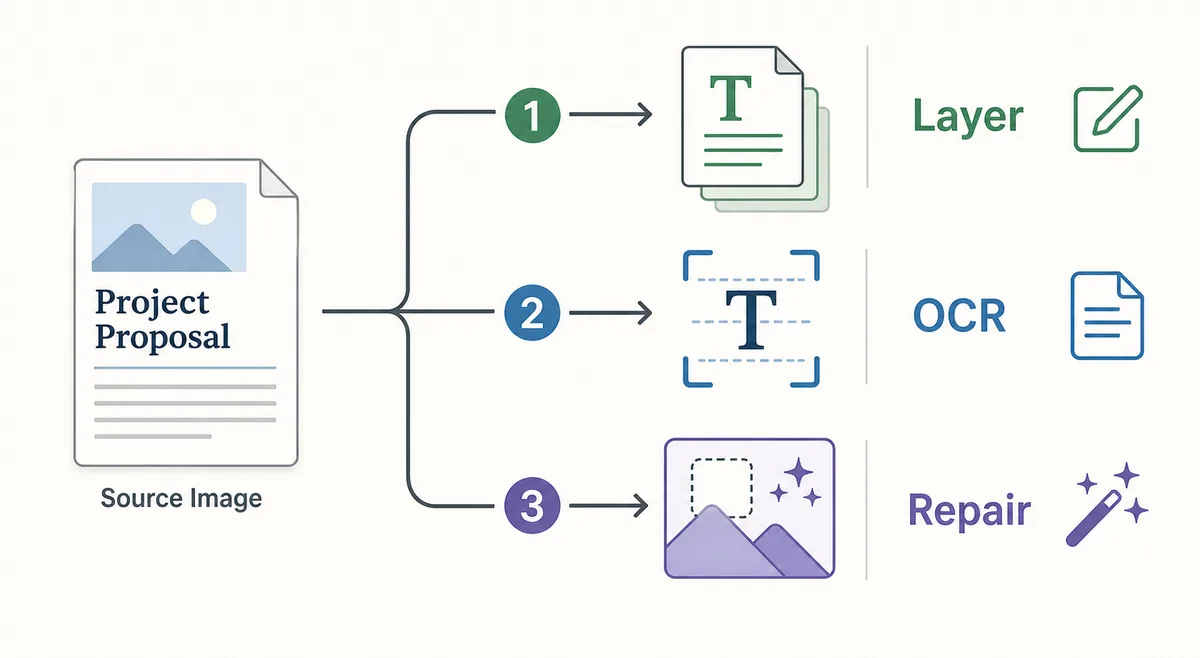
Three-path workflow for layer editing, OCR extraction, and AI background repair
A practical workflow separates live layer edits, OCR extraction, and true background repair.

Where Canva can struggle with baked-in text

Canva is a design editor, so it is strongest when you control the original design layers. Finished image text creates different problems: old letters must be removed, background texture must be reconstructed, and the new text must visually fit the surrounding design.

  • A new text box placed over old wording often leaves ghosted letters, mismatched shadows, or visible blocks behind the replacement.
  • OCR-style extraction can recover words, but it does not automatically restore the image area underneath those words.
  • Matching the same font is harder when the original image has compression, blur, perspective, shadows, or decorative type.
  • Short replacements with similar length usually look cleaner than rewriting a whole paragraph inside a flattened image.

Which workflow should you use?

The best choice depends on your goal. Use Canva for layout work and live text. Use ImageTextEdit when the visual problem is replacing text that is already part of the image pixels.

Use case Recommended workflow Practical note
Change a sale date in a flattened poster AI text replacement Select only the old date and keep the new date similar in length.
Update a Canva social post you still own Canva text box edit Use the original design file so spacing and brand style remain editable.
Extract text from a screenshot for a new design Grab Text or OCR Use it to recover copy, then rebuild the visual as a new design.
Replace a product label or menu price AI text replacement This needs background repair and same-style blending, not only a new overlay.

Related image text workflows

Replace Text in Image Online

Use the full replacement workflow when the old words need to disappear and new wording should blend into the original image.

Open replacement tool

Edit Text with the Same Font

Learn how to keep replacement text close to the surrounding font style, color, weight, and spacing.

Match font style

Edit Text in PNG

Use this page when your uploaded Canva export or transparent graphic is a PNG file.

Edit PNG text

How to Edit Text in Photoshop Image

Compare Canva, Photoshop, and browser AI workflows for layered and flattened images.

Compare Photoshop workflow

FAQ about editing image text in Canva

Not like a live text box. If the text is baked into the pixels, Canva may help extract, remove, or cover parts of it, but the original words are no longer directly editable. For natural replacement, use an AI repair workflow.

You can upload the image and add new text on top. Directly changing existing flattened text depends on extraction or removal tools and may not preserve the original background. If the goal is a believable replacement, remove and repair the text area first.

Grab Text is useful when you need to recover words from an image, but text extraction is different from visual replacement. Replacement also needs background cleanup, font matching, and spacing control.

If you still have the Canva project, reopen the original design and edit the text layer. If you only have the exported image, use an AI image text editor to replace the flattened text, then bring the finished image back into Canva if you need more layout work.

Need to replace baked-in text instead of adding a new Canva layer?

Upload the finished image, select the old wording, enter the replacement, and let AI repair the background behind the text.