Edit Text in PNG Image Online
Use an AI PNG text editor to replace, correct, or remove text in PNG files without rebuilding the image from scratch. Upload a flattened PNG, select the old wording, enter the replacement text, and generate a cleaner result while keeping the layout, background, and transparent areas intact when possible.
Upload Your Image
Drag & drop or click to upload
Supports: JPG, PNG, JPEG, WebP (Max 20MB)
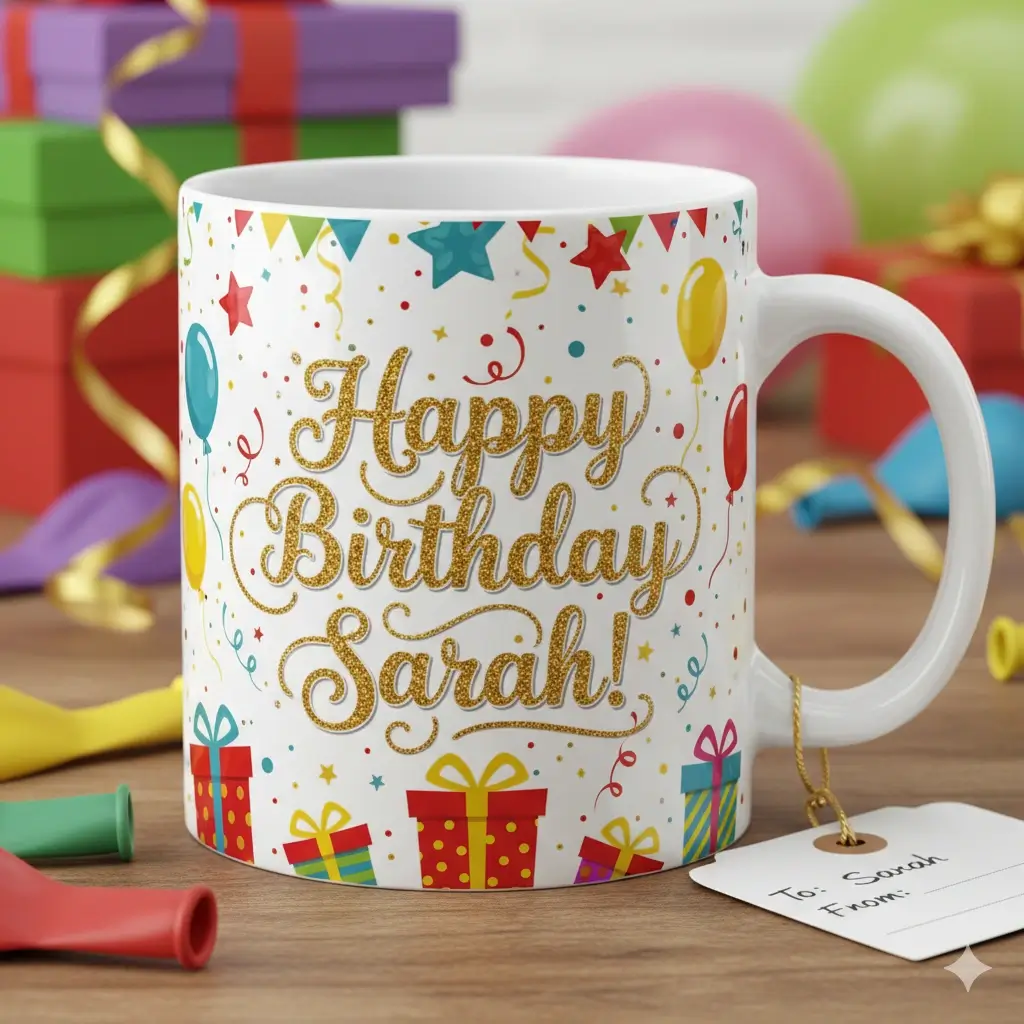
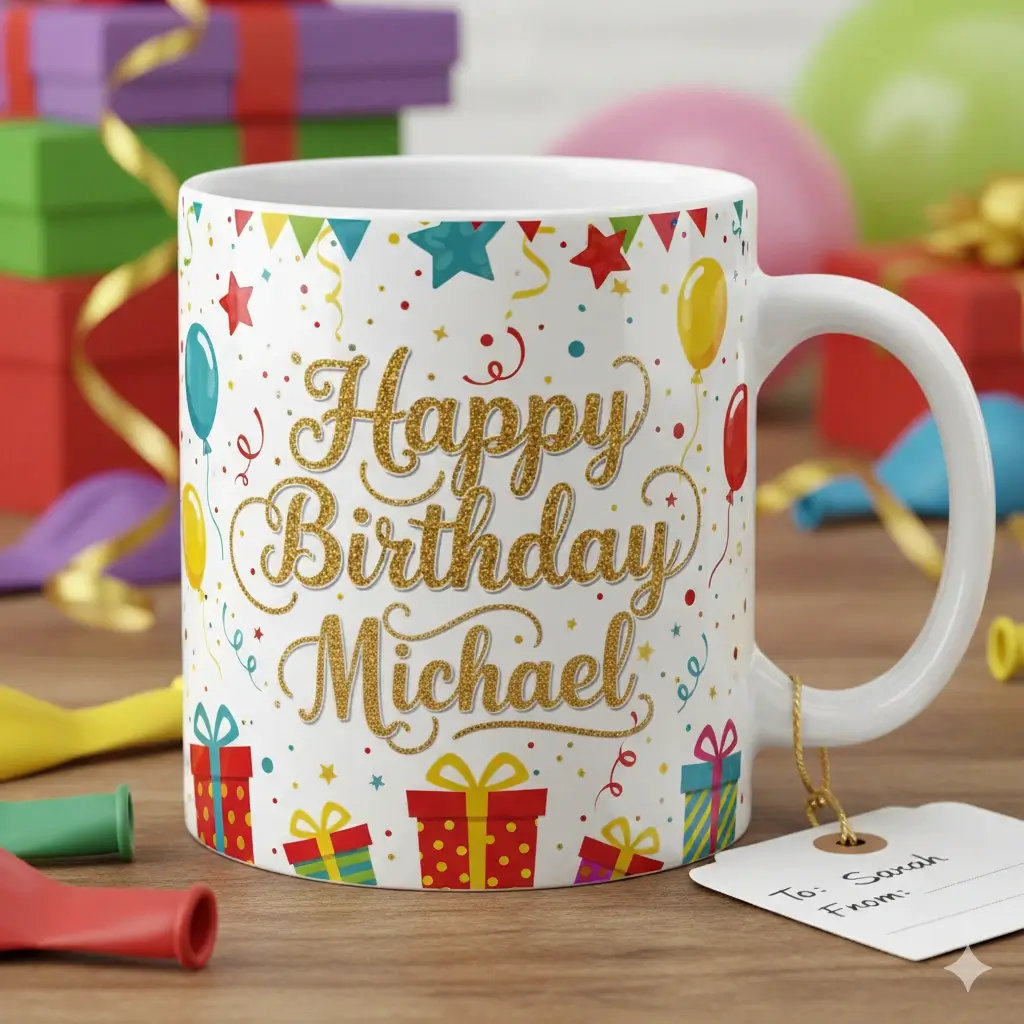
Replace baked-in PNG text instead of covering it with a visible text box.
Upload a PNG, mark the text area, type the new copy, and download the edited image.
Drag to adjust the text selection area
Edit Text
Your Image Preview
Upload an image to start editing
Processing Your Image...
This usually takes 30-60 seconds
How to Edit Text in PNG Images Online
Upload the PNG Image
Start with the PNG file that already contains the text you need to change. This is useful when the original PSD, Canva, Figma, or design source is missing and the text is already baked into the pixels.
Select the Text Area and Type New Words
Draw a box around the old text, then enter the replacement. The PNG text editor uses the marked region to understand the surrounding background, original lettering, color, size, and placement.
Generate and Download the Edited PNG
The AI removes the old text, repairs the selected area, and places the new text back into the image. The goal is a natural PNG edit that looks closer to the original design than a manual overlay.
Edit the PNG you have, even when the source file is gone
People search for edit text in PNG image online because a PNG is usually a final exported raster image. The words inside it are not live text layers. They are pixels, just like the logo, product label, screenshot, menu, or poster around them. A useful PNG text editor needs to remove the old lettering, rebuild the background, preserve transparency when possible, and place the replacement text in a believable style.
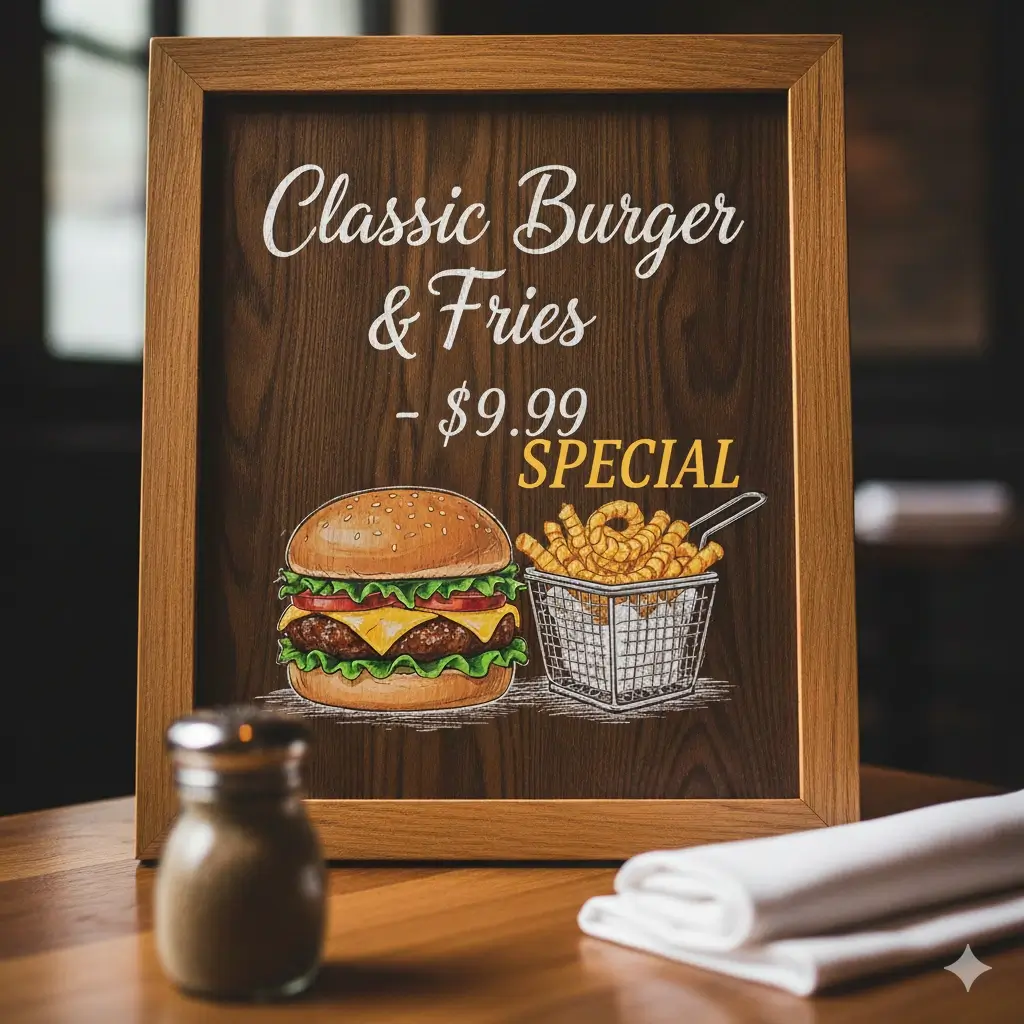
Common PNG Text Editing Examples
These examples match the reasons users need an online image text editor for PNG files: quick corrections in finished visuals, not a full redesign workflow.
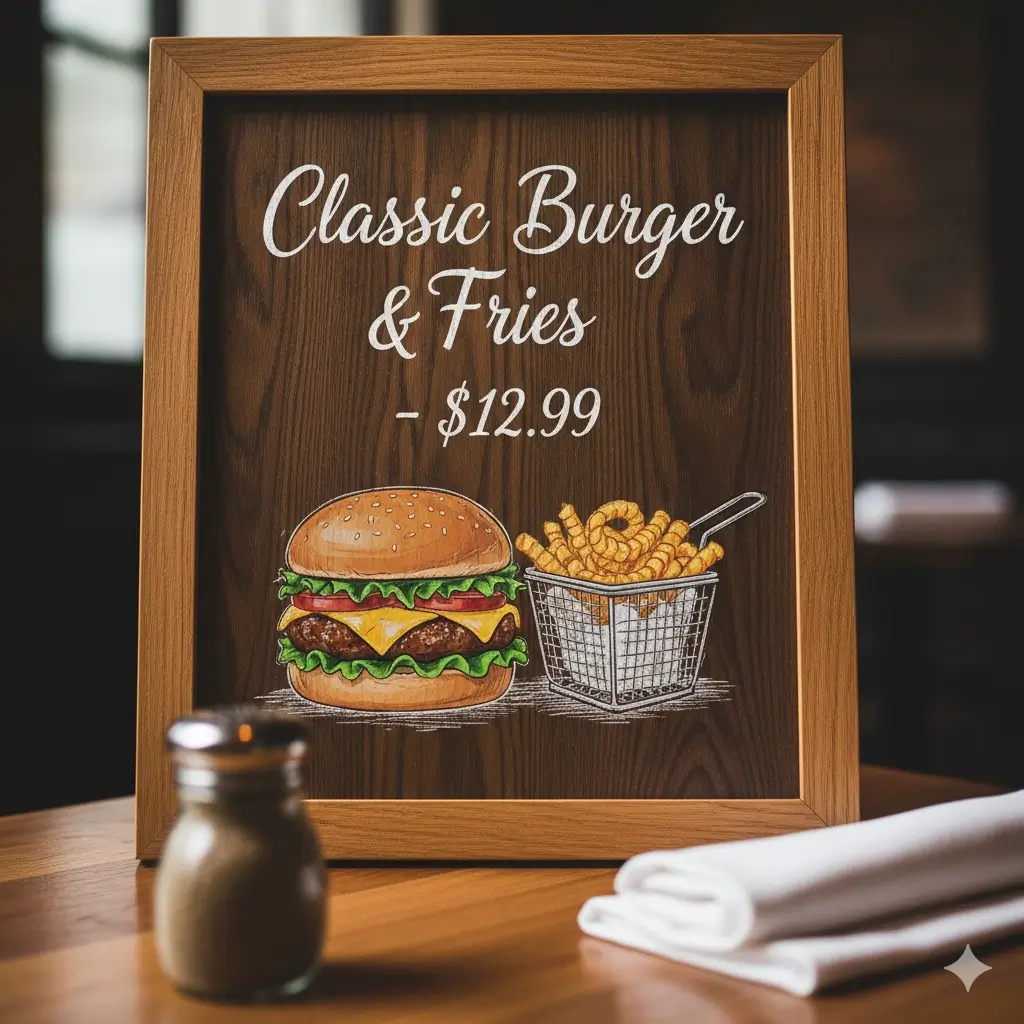
Menu Price PNG Update
Change one price or item name in a restaurant menu PNG while keeping the same layout and background.


Sale Graphic Text Replacement
Replace a discount, deadline, or promo line in a PNG banner after the design has already been exported.
Product Label Text Change
Correct label text, flavor names, short claims, or variant wording in a product PNG without rebuilding the mockup.
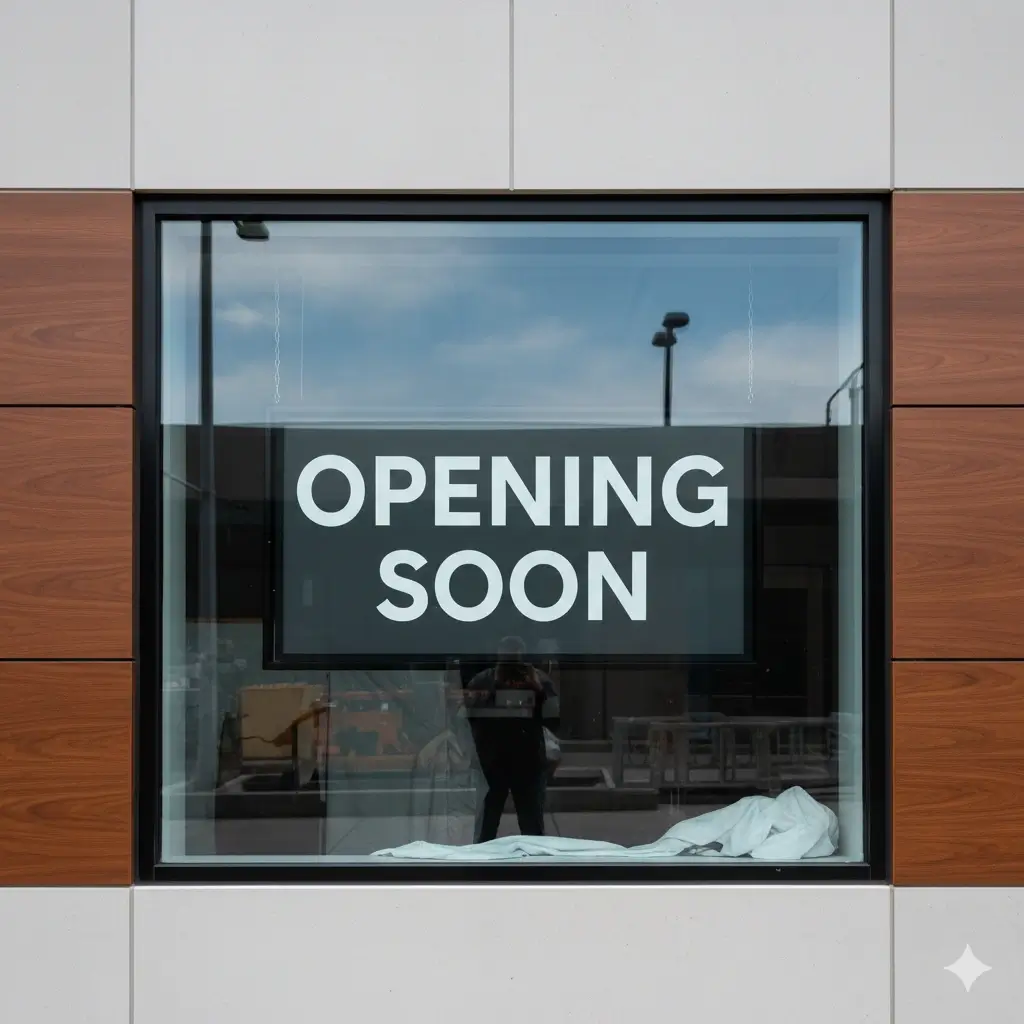
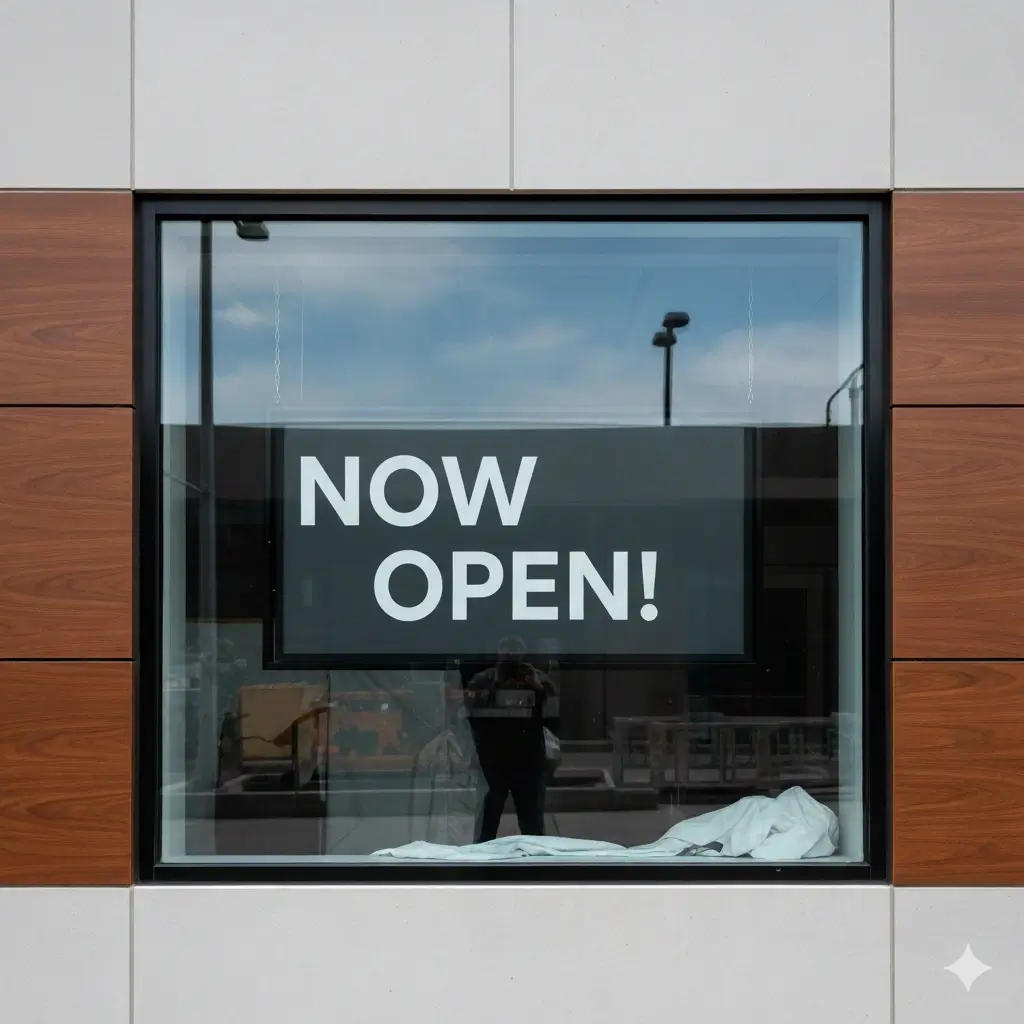
Business Sign PNG Edit
Update short sign text, hours, notices, or announcements in a flattened PNG image.


Property Graphic Text Fix
Refresh a number, status, address line, or price in a marketing PNG before publishing it.


Short Caption Rewrite
Fix a typo or update a short caption in a social PNG without placing an obvious block over the old text.
What This AI PNG Text Editor Helps You Do
Replace Text in PNG Images
Select existing wording in a PNG image and enter the new text you want. The editor focuses on changing the marked area while leaving the rest of the image alone.
Remove Old Text Before Adding New Text
A convincing PNG text edit starts by removing the old letters and rebuilding the pixels behind them. This is the difference between replacement and a basic overlay.
Keep Font Feel, Size, and Placement Close
Exact font recovery is not always possible from a flattened PNG, but the AI aims to match the original style, weight, color, spacing, alignment, and visual tone.
Edit Transparent PNG Text Carefully
Use this page for transparent PNG assets such as labels, stickers, logos, and interface graphics. Results depend on the text area, background complexity, and image resolution.
Fix Typos, Prices, Dates, and Labels
Most users do not need a full design editor. They need to change one small piece of PNG text quickly and keep the exported image usable.
Support Common Web Image Workflows
The same upload workflow accepts PNG, JPG, JPEG, and WebP files, so you can work with the final image format you actually have.
What Works Best When You Edit Text in PNG
What the AI tries to preserve
- Original layout, spacing, and alignment around the selected text
- Sharp edges that are common in PNG screenshots, labels, and graphics
- Background colors, gradients, and simple textures behind old text
- Transparent or empty areas outside the selected edit region when possible
- Text color, weight, size, and nearby visual effects
- Readable replacement text that fits naturally in the same space
PNG images that usually perform best
- Clear PNG files with readable text and enough resolution
- Screenshots, menus, product labels, posters, signs, and interface images
- Transparent PNG graphics where the edited text sits on a clear local area
- Short replacement text that is similar in length to the original wording
- Simple or moderately detailed backgrounds behind the selected text
- Images without heavy blur, tiny fonts, extreme perspective, or dense shadows
PNG Text Editor vs JPG and WebP Text Editing
Choose the page that matches the exported image you already have. PNG is often best for sharp graphics and transparent assets, while JPG and WebP need slightly different expectations.
| Format | Best for | Text editing note | Next step |
|---|---|---|---|
| PNG | Screenshots, menus, labels, transparent images, UI graphics, and sharp web assets | Great for readable text and transparent areas, but the text is still usually baked into pixels after export. | Current Page |
| JPG / JPEG | Photos, compressed marketing images, product shots, and exported campaign graphics | Compression artifacts can soften letters, so background repair and style matching need extra care. | Open JPEG Editor |
| WebP | Modern web images, compressed site assets, and exported graphics with small file sizes | Useful for web workflows, but visual quality depends on the source export and compression settings. | Open WebP Editor |
Best Use Cases for Editing Text in PNG Images
Menus and Price Lists
Use the PNG text editor when a menu or price list has been exported as a PNG and only one number, item name, or availability note needs to change.
Transparent Labels and Stickers
Edit transparent PNG text on product labels, sticker graphics, packaging marks, or simple logo-like assets while keeping unrelated transparent areas untouched when possible.
Screenshots and UI Graphics
Replace text in PNG screenshots for documentation, tutorials, support examples, product walkthroughs, and UI mockups without retaking the original capture.
Sale Banners and Social Posts
Change a date, discount, event name, CTA, or headline in a PNG graphic after the design file has already been exported.
Posters, Signs, and Notices
Update short copy in a sign, poster, opening-hours image, event notice, or announcement PNG while preserving the existing visual structure.
Product and Marketplace Images
Correct product names, variant text, badge copy, claims, or small labels in marketplace images when the source mockup is not available.
FAQ: PNG Text Editor Online
Try the AI PNG Text Editor
Upload your PNG, replace the old text, and generate an edited image online without rebuilding the original design.
Why This Workflow Fits PNG Text Changes
Made for final exported images
Use it when you only have the finished PNG and need to update a small but important piece of text.
Transparent PNG context matters
The workflow treats PNG assets as sharp graphics that may include transparent areas, not just ordinary photos.
Style matching stays central
The goal is not just adding text. The result needs to fit the original font feel, background, alignment, and design context.
Practical for business assets
Menus, labels, banners, screenshots, signs, product graphics, and social visuals are all common PNG editing scenarios.