
TinyWow Image Text Edit Alternative for Replacing Text
Need to change words that are already part of a finished image? Upload the file, select the old text, enter a replacement, and review a repaired result without rebuilding the whole design.
Upload Your Image
Drag & drop or click to upload
Supports: JPG, PNG, JPEG, WebP (Max 20MB)
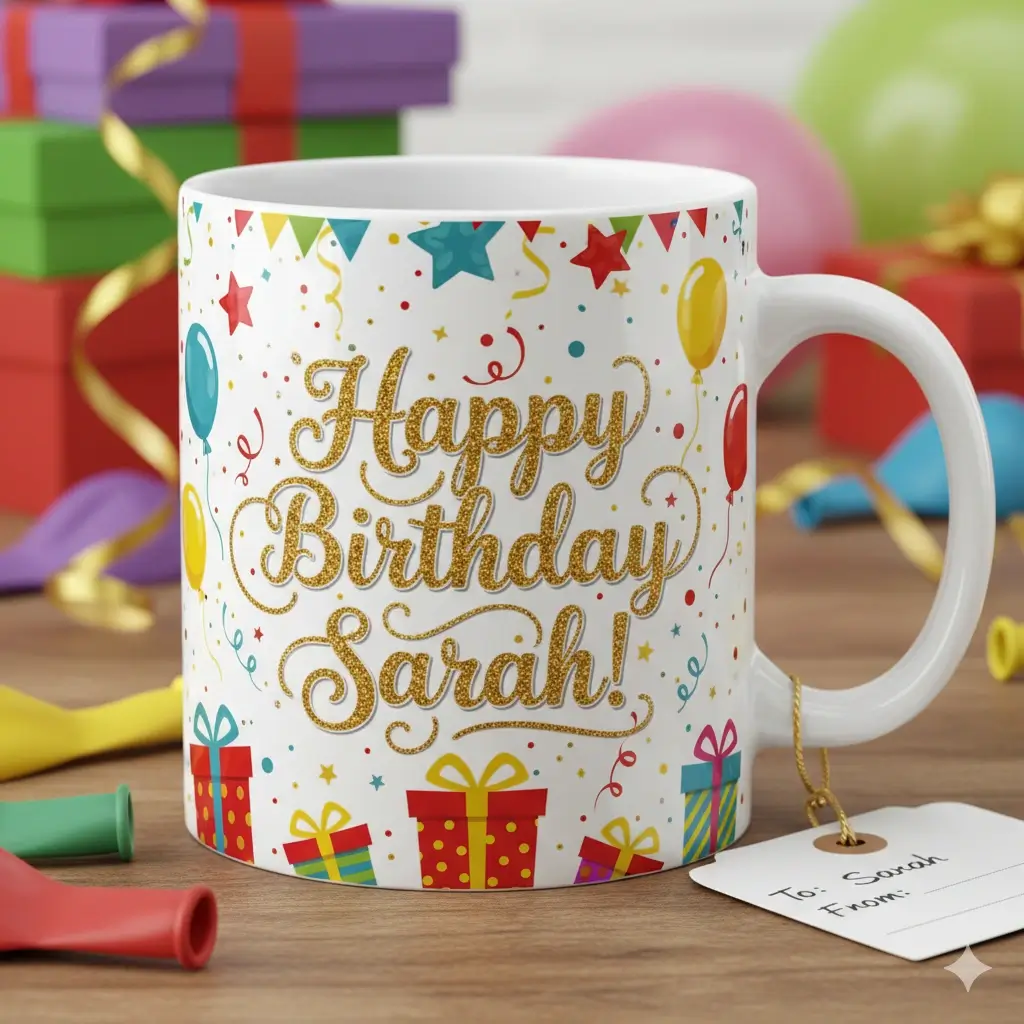
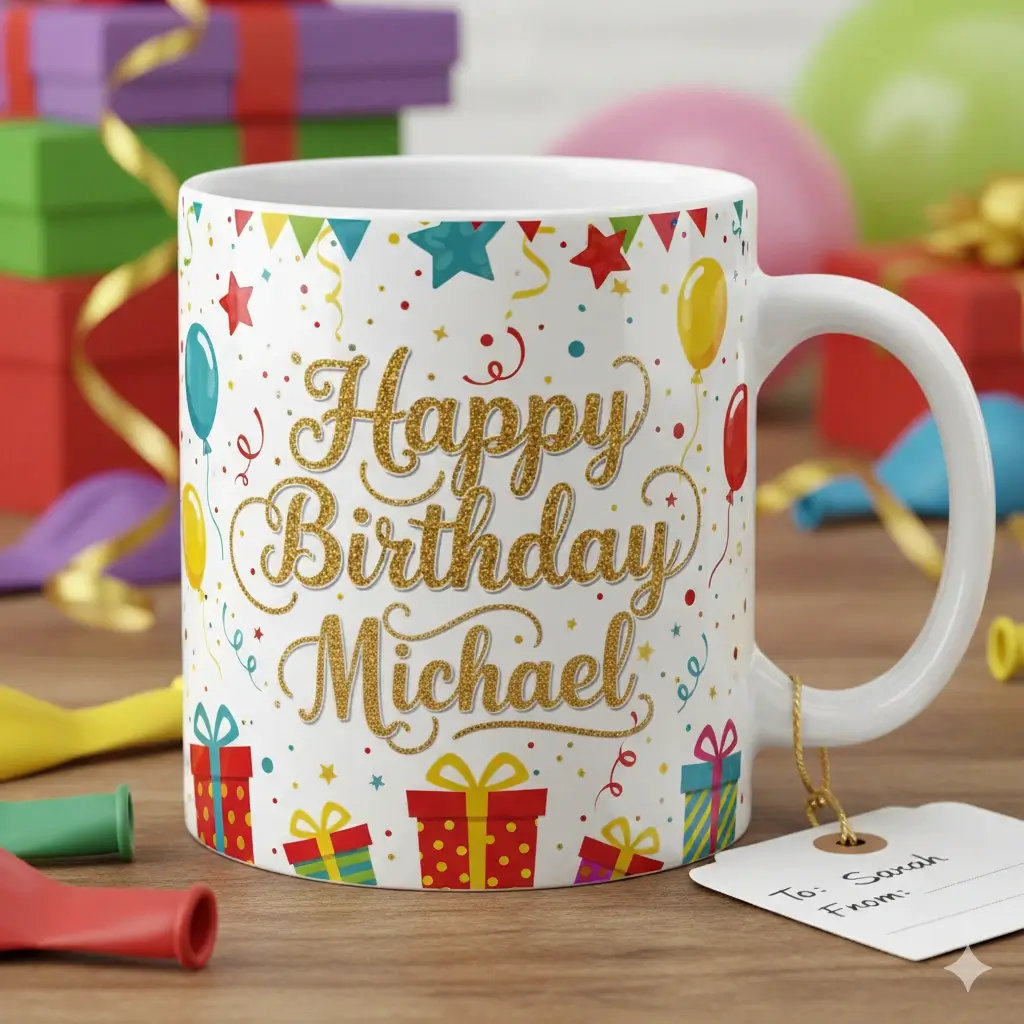
Replace a short label, price, date, or product word that is already flattened into the image.
Use a tight selection when the replacement should stay close to the original layout.
Drag to adjust the text selection area
Replace Text in the Finished Image
Your Image Preview
Upload an image to start editing
Processing Your Image...
This usually takes 30-60 seconds
How to Use This TinyWow Image Text Edit Alternative
Upload the finished image
Start with a JPG, PNG, JPEG, or WebP file that contains the wording you need to change.
Select the old text
Draw a focused selection around the letters, number, price, date, or label that should be replaced.
Generate and review
Enter the new wording, generate the edit, and check the repaired background before downloading the result.
A focused alternative when the text is already baked into the image
This TinyWow alternative page is intentionally narrow. It is for the moment when a design is already exported and only a few words, numbers, dates, prices, or labels need to change. The working editor stays near the top, while the sections below help you decide whether this workflow fits the file and the job.
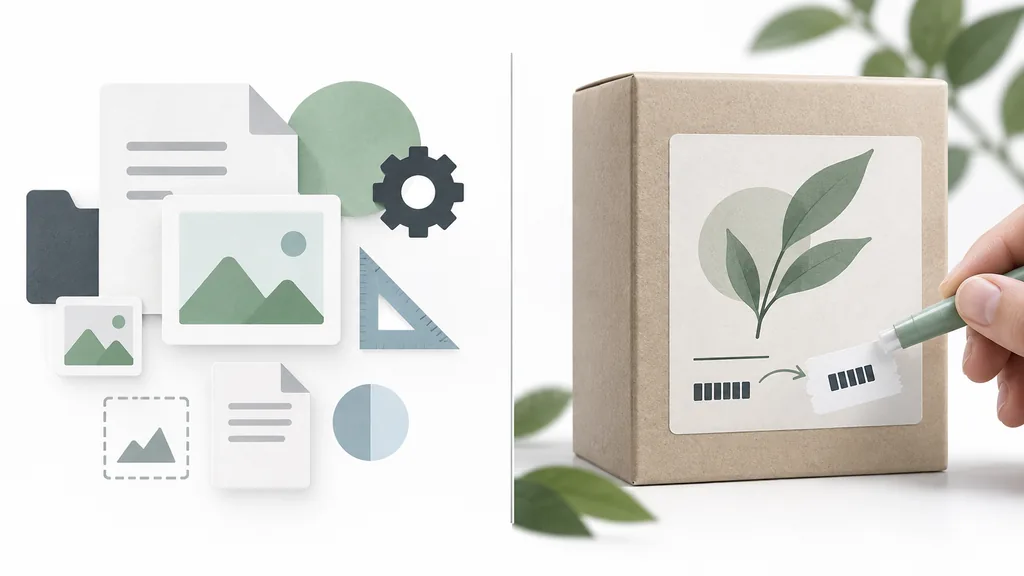
Useful TinyWow Alternative Scenarios
These examples show when a focused text replacement is more practical than rebuilding the full visual from scratch.
Update a product label
Correct a short variant name, flavor, or badge in an exported product graphic.
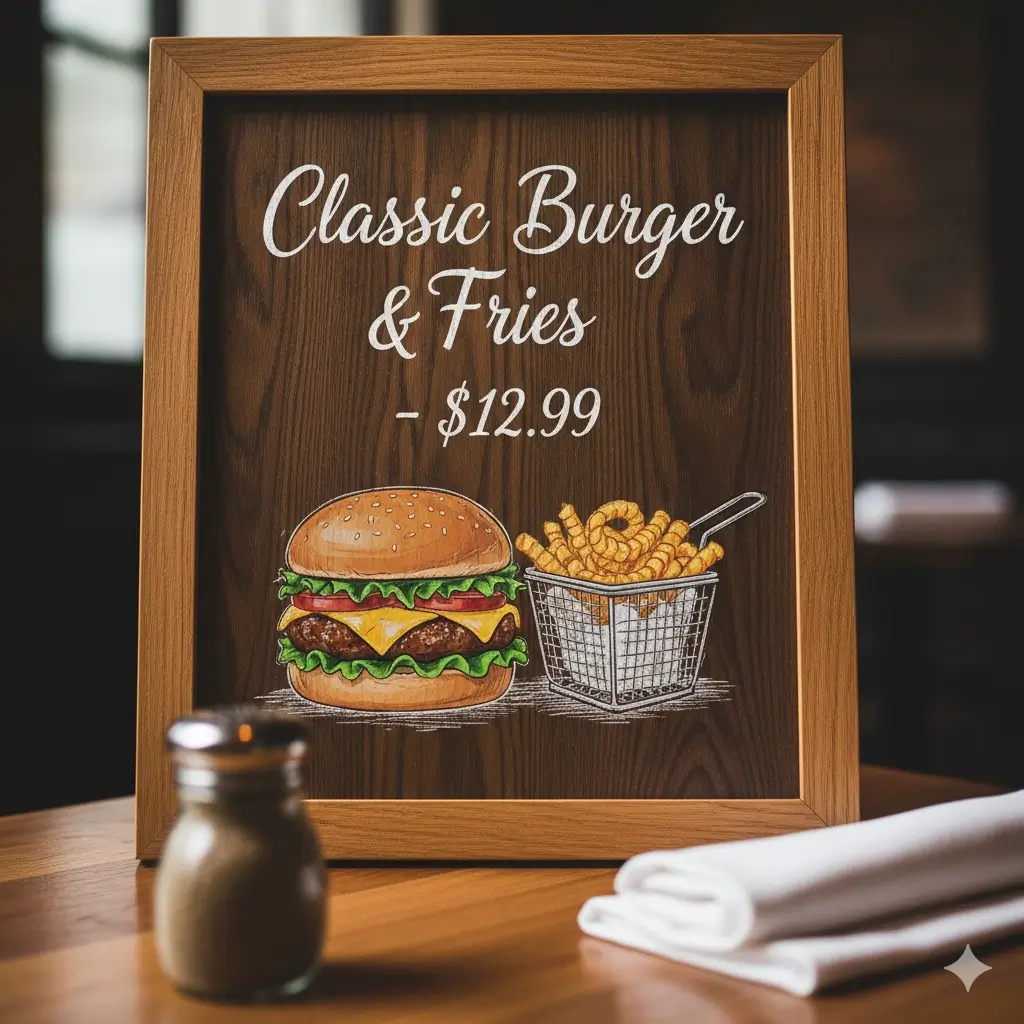
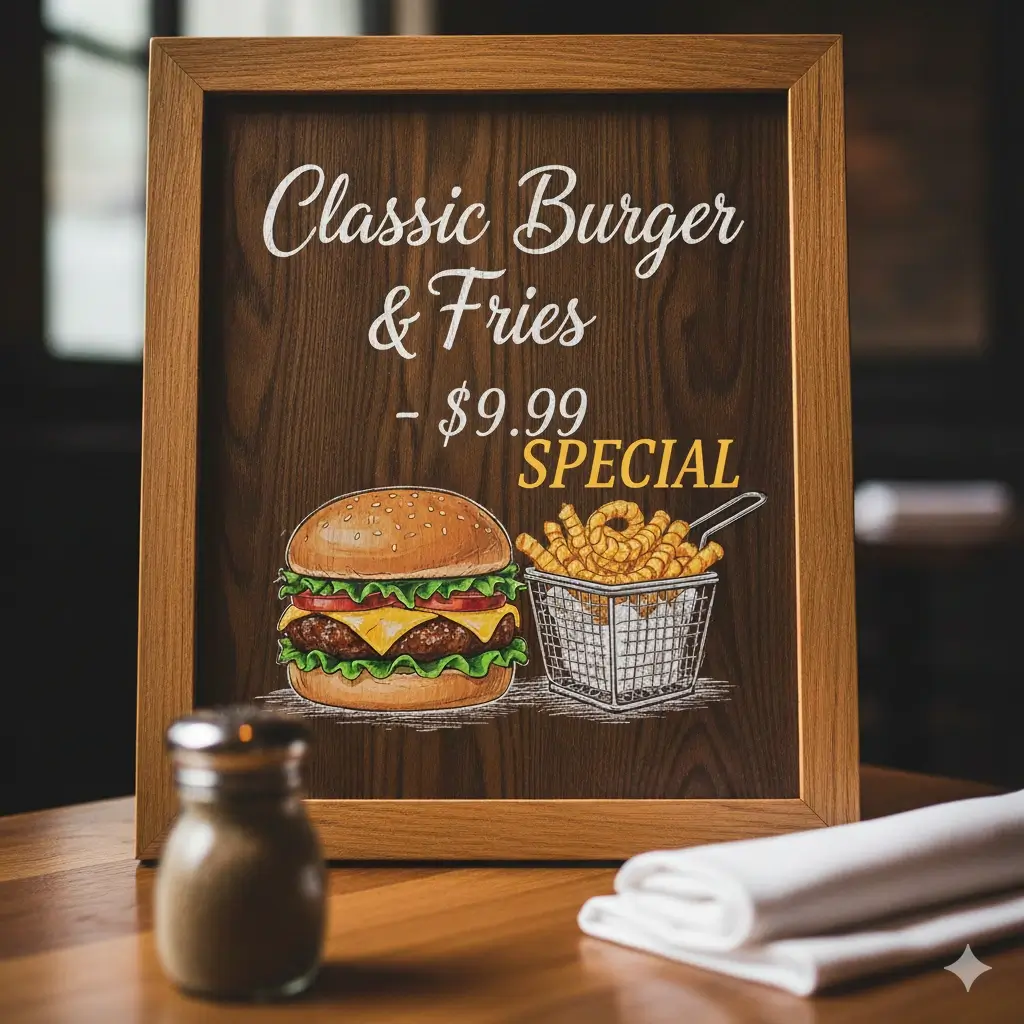
Change a menu price
Replace one price or menu item while keeping the surrounding layout and background intact.


Fix a campaign label
Update a discount, deadline, date, or short callout after the original banner has been exported.
What This TinyWow Alternative Helps You Do
Replace embedded text
Select existing wording and enter a replacement without rebuilding every design element.
Restore the background
Clear the selected area before new words are placed back into the image.
Preserve the visual context
Use a focused selection so nearby products, borders, and shapes remain outside the edit.
Edit common image formats
Start with JPG, JPEG, PNG, or WebP files that contain readable text.
Handle practical updates
Change prices, names, dates, numbers, labels, and short marketing copy.
Stay in the browser
Make a small correction without opening a full desktop design application.
TinyWow Alternative vs Other Image Text Workflows
Choose the page by the job you need to finish, not just by the name of the tool.
| Option | Best for | Editing note | Next step |
|---|---|---|---|
| This TinyWow alternative | Replacing short text already embedded in a finished image | Best when old wording must disappear and new words need to blend into the same area. | Current page |
| AI image text editor | A broader text-in-image editing workflow | Use the general editor when you are not comparing a specific competitor or file format. | Open AI editor |
| Same-font editor | Changes where font feel, weight, spacing, and color are the priority | Use a font-focused page when a close visual match matters more than the brand comparison. | Open same-font page |
| Remove text tool | Removing unwanted words without adding replacement copy | Choose removal when the goal is a clean image rather than a new label. | Remove text |
When This Page Is a Better Fit Than a General Alternative List
A broad alternative list compares complete photo editors. This page is intentionally narrower so you can decide whether the actual job is replacing text inside one finished image.
Choose this page for one focused repair
If the image is already designed and only a few words, numbers, prices, or dates are wrong, a selection-based editor can be faster than recreating the layout.
Choose a broader editor for broader work
If you need filters, retouching, templates, collage work, or general photo adjustments, compare a full editor instead of forcing a text-replacement workflow to do everything.
Keep sensitive documents out of casual workflows
For official, legal, medical, financial, or identity documents, verify every character and use a controlled workflow before sharing an edited file.
Inputs, Outputs, and Limits
Good inputs
- JPG, JPEG, PNG, and WebP files with readable text
- Short words, dates, numbers, prices, or product labels
- A clear selection that does not include nearby objects
- Replacement wording that fits the original area
- Simple or moderately detailed backgrounds
Important limits
- Flattened images do not contain editable text layers
- Exact font recovery is not guaranteed from pixels alone
- Tiny, blurry, angled, or heavily shadowed text is harder to replace
- Longer replacement copy may not fit the original layout
- Review sensitive or official documents manually before use
TinyWow Image Text Edit Alternative FAQ
Try a focused image text replacement
Upload a finished image and see whether a short text change can be completed without rebuilding the whole design.
Use the Result Carefully
Review before publishing
Check spelling, alignment, edges, and the repaired background before sharing the result.
Short edits work best
Short replacement text is easier to fit into the original visual space.
Keep source files private
Do not upload documents you are not allowed to process or share.
Choose the right workflow
Use a format-specific or removal page when this comparison page is not the best match.