Prompt guide

ChatGPT Photo Editing Prompts for Text: 9 Practical Examples

ChatGPT image editing can be useful when you need to describe a text change clearly, but the prompt has to be precise. A weak request such as “change the words” often gives the model too much freedom, while a strong prompt names the exact text area, the replacement wording, the style to preserve, and the final review criteria. This guide focuses on photo and screenshot text edits: signs, menus, product labels, event dates, short UI copy, and other finished images where the original design file is not available.

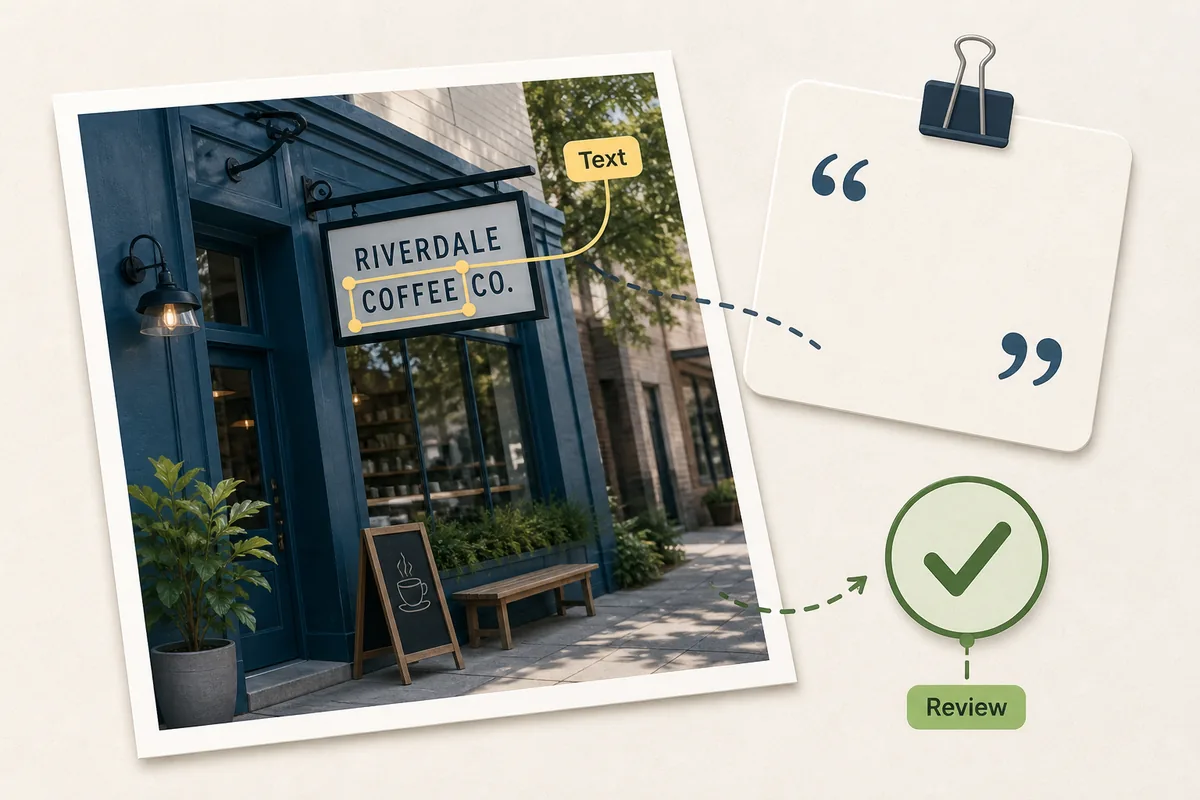
Editorial illustration of a highlighted text area in a photo with a short prompt and review mark
Good image-editing prompts define the target text, replacement wording, style constraints, and review standard before generation.

Quick answer

The best ChatGPT photo editing prompt for text is specific: identify the old words, provide the exact replacement, ask the model to preserve font style, color, spacing, perspective, lighting, and background texture, then request a natural result with no extra objects or unrelated redesign. For production work, use a dedicated image text editor when you need selection control and repeatable output.

When ChatGPT-style prompts work best

Prompt-based editing is strongest when the text change is short and the surrounding image gives clear style cues. It is less reliable when the old letters are tiny, heavily blurred, curved across complex surfaces, or part of a legal, financial, or safety-critical document that must remain exact.

Situation Best prompt angle Watch out
Menu price, sale label, or date change Name the exact old value and replacement value, then ask to keep alignment, font weight, color, and nearby texture. Large length changes can crowd the design.
Sign, poster, or product label Describe the physical surface, lighting, perspective, and weathering that should remain unchanged. Ask for no new logos, icons, slogans, or decorative redesign.
Screenshot or UI text Keep the interface layout unchanged and replace only the selected wording. Never use fake screenshots for sensitive or misleading claims.
Long paragraph or dense document text Use OCR or a document editor first; use image editing only for final visual cleanup. Generative editing can alter letters, line breaks, or facts.

A prompt formula that reduces bad edits

Instead of asking for a broad image makeover, treat the prompt like a small production brief. The goal is to narrow the task until the model understands that only one text region should change.

Step 1

Identify the text area

Point to the selected line, label, sign, date, price, button, or screenshot text. If you are using a tool with selection or masking, select only the old words and avoid nearby icons or edges.

Step 2

Give the exact replacement

Write the replacement exactly as it should appear, including capitalization, currency symbols, punctuation, and line breaks. Short replacements usually produce more believable results.

Step 3

Preserve the visual style

Ask to keep the original font feel, size, color, baseline, spacing, perspective, shadows, reflections, and background texture. These constraints matter more than a generic request to “make it realistic.”

Step 4

Define the review standard

Tell the model not to add new objects, change the layout, invent extra text, or blur the area. After generation, inspect edges, letter shapes, spacing, and background repair before publishing.

Copy-and-paste prompt examples

Use these examples as starting points, then replace the bracketed details with the actual text in your image. The safest prompts are direct and narrow; they do not ask for a full redesign.

Use case Prompt example Why it works
Restaurant menu price Replace the price “$12.99” with “$14.99”. Keep the same font weight, alignment, ink color, spacing, paper texture, and surrounding menu layout. Do not change any other menu item. It names the exact old and new text and prevents unrelated edits.
Outdoor sign text Change the sign text from “COASTAL TRAIL” to “HIDDEN COVE”. Preserve the wooden sign texture, weathering, perspective, arrow, lighting, and background. Do not add new decorations. It includes the physical material and perspective constraints.
Product label Replace “250 ml” with “300 ml” on the front label only. Match the existing label typography, label curve, shadows, and print quality. Keep the bottle and background untouched. It limits the edit to one label area and protects the product photo.
Event poster date Update the date from “June 12” to “July 18”. Keep the same type style, color contrast, text size, and poster composition. Do not rewrite the title or sponsor names. It handles a common short replacement without changing the poster.
Screenshot label Replace the selected UI label “Draft” with “Approved”. Keep the interface layout, icon spacing, font size, background color, and sharp screenshot quality. Do not invent new UI elements. It makes screenshot fidelity the main requirement.
Social post caption Change the headline text to “Weekend Sale”. Preserve the original photo, text placement, color palette, and margins. Keep all non-selected text exactly as it is. It allows a headline update without redesigning the asset.
Same-font replacement Replace “Basic Plan” with “Starter Plan” and match the original font style as closely as possible, including letter spacing, line height, color, and antialiasing. It explicitly targets typography rather than only meaning.
Background repair after removal Remove the selected words and rebuild the background texture naturally. If new text is added, keep it inside the original text area and avoid blurring nearby details. It covers the cleanup step that many prompts forget.
Quality review Make the edited text look native to the original image. Check for mismatched shadows, warped letters, uneven spacing, extra artifacts, or changed background details. It gives the model and the editor a concrete acceptance checklist.
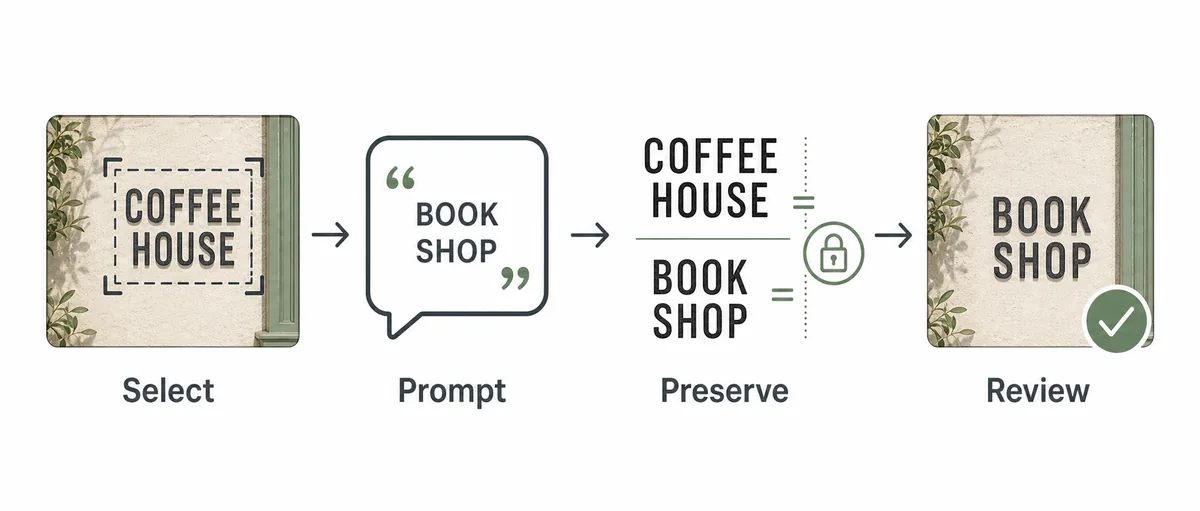
Four-step visual workflow for selecting text, writing a prompt, preserving style, and reviewing the result
A reliable text-editing workflow starts with a narrow selection, then uses the prompt to preserve style and review the edited result.

Important limits before you publish an edited image

Prompt examples can speed up production, but they are not a guarantee of exact typography or factual accuracy. Review every generated edit before using it in a campaign, product listing, or customer-facing document.

  • Do not use generated edits to create misleading receipts, IDs, legal records, medical records, financial statements, or screenshots that imply false activity.
  • Avoid long replacements when the original text area is small; the model may squeeze letters, change layout, or invent abbreviations.
  • For brand assets, compare the edited result with approved typography and color rules before publishing.
  • For UI screenshots, keep the page context honest and avoid implying a system state that did not happen.
  • For dense document text, use the original document editor or OCR workflow instead of relying only on image generation.
  • When a fast, repeatable result matters, use a selection-based image text editor so the old wording, background repair, and replacement area are controlled.

Related workflows

Edit text in an image online

Use the main editor when you need to upload a finished JPG, PNG, WebP, or screenshot and replace text directly.

Open the editor

Edit text with the same font

Use this when the prompt must preserve typography, spacing, and style as closely as possible.

Match the font

Replace text in image online

Use a replacement-focused workflow when the old words need to be removed and rebuilt with new copy.

Replace text

Edit screenshot text online

Use the screenshot page for UI labels, dates, names, dashboard values, and exported interface visuals.

Edit screenshot text

FAQ

ChatGPT image tools can help with image editing requests when the prompt is clear, but exact typography is not guaranteed. For practical production edits, a selection-based image text editor gives you more control over the old text area and replacement wording.

Include the exact old text, the exact replacement, the selected location, and the visual details to preserve: font style, color, spacing, perspective, shadows, texture, and surrounding layout.

Use a prompt when you are exploring a small visual edit or describing the desired result. Use an online image text editor when you need selection control, predictable background repair, and a workflow designed specifically for replacing text in images.

Prompts can ask for the same font feel, but they may not recover the exact typeface. Short text, clear source lettering, and explicit style constraints improve the chance of a believable match.

No. Do not use generative image editing to alter official, legal, medical, financial, identity, or safety-critical documents. Use legitimate source files and approved workflows instead.

Need a controlled text replacement?

Use prompts to clarify the edit, then use ImageTextEdit when you need a focused upload, selection, replacement, and download workflow.