Canva removal guide

Canva Remove Text from Image: 4 Practical Ways

Canva can remove or cover text in some images, but the right workflow depends on what kind of text you are dealing with. A live Canva text box is editable. A flattened JPG, PNG, WebP, screenshot, menu, poster, or product photo is only pixels. This guide explains when to use Canva Magic Eraser, when Grab Text helps, when a cover-up is enough, and when an AI text remover is cleaner because it removes the old letters and repairs the background.

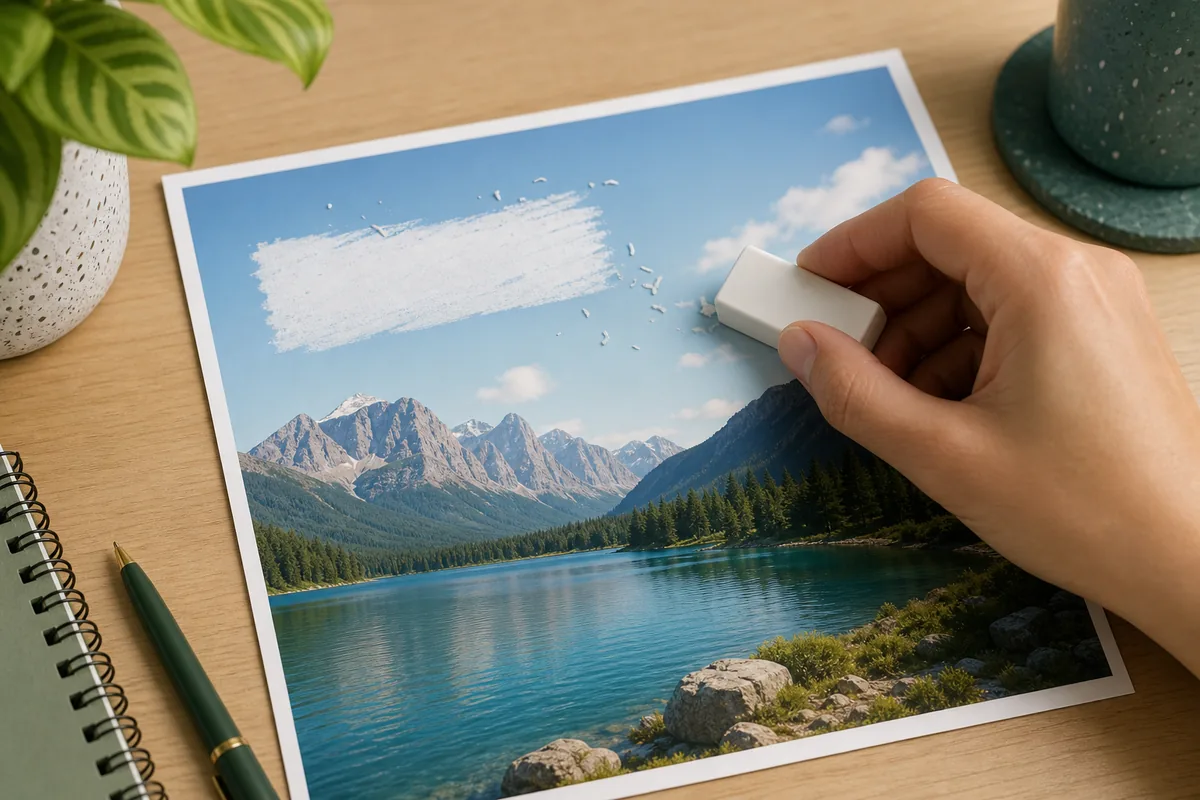
Hand erasing text from a printed image to illustrate Canva text removal decisions
The first decision is whether the text is a live Canva layer or flattened pixels inside the image.

Quick answer

If the text is a Canva text box, select it and delete or edit it. If the words are baked into an uploaded image, try Magic Eraser for removal or Grab Text for extraction. If you need a cleaner background repair or want to replace the wording afterward, use ImageTextEdit's remove text from image workflow and bring the cleaned image back to Canva.

First decide what kind of text Canva is seeing

Most confusion around Canva remove text from image searches comes from mixing three different jobs: deleting a text layer, extracting words, and repairing image pixels. Treat them separately before choosing a tool.

Editable Canva text

Use Canva directly. Click the text box, delete the words, or change the copy, font, color, spacing, and position.

Text inside a flat image

Use Magic Eraser or an AI text remover. The task is background repair, not normal text editing.

Text you want to reuse

Use Grab Text or OCR-style extraction first. Extraction helps recover copy, but it does not clean the original background by itself.

Sensitive or copyrighted markings

Only remove text from images you own or have permission to edit. Do not use removal workflows to hide attribution or misuse someone else's work.
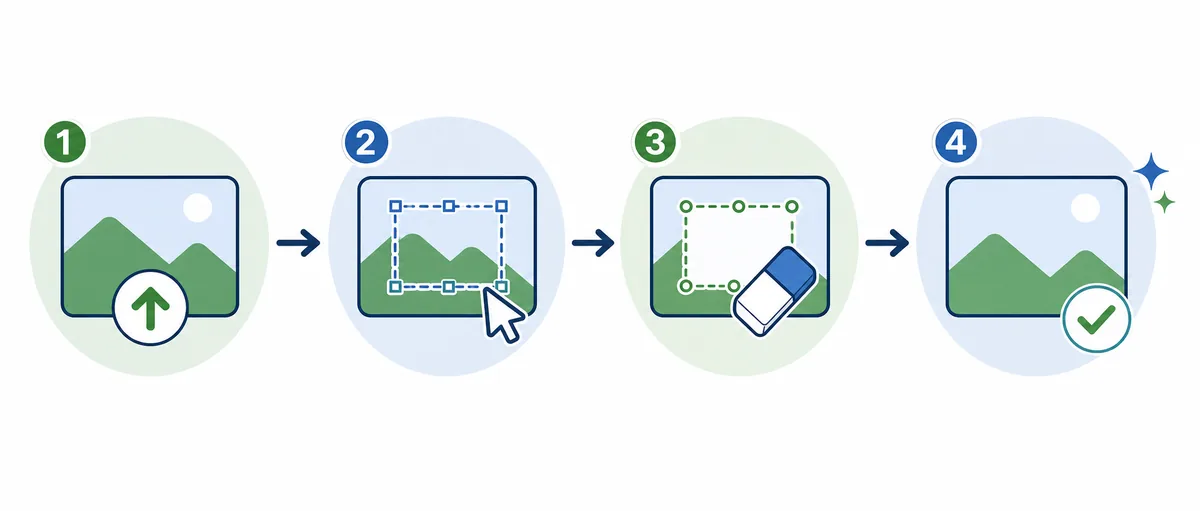
How to remove text from an image in Canva

Use this sequence when you have an image already placed in a Canva design. It keeps the fast Canva workflow but avoids forcing Canva to solve jobs that need stronger background repair.

Step What to do Why it matters
1 Click the text and see whether Canva exposes a text box. Live text is easiest to delete without damaging the image.
2 For flattened image text, brush only the letters with Magic Eraser. A tight selection protects nearby faces, logos, product details, and borders.
3 Use Grab Text if you need to keep the wording for a new design. Text extraction is useful for copy recovery, but it is not background cleanup.
4 If the background looks rough, repair it with an AI text remover and re-upload to Canva. Dedicated repair works better for menus, signs, screenshots, labels, and textured images.
Four-step editorial workflow for uploading, selecting, erasing, and reviewing removed image text
A simple workflow separates Canva layer edits from true pixel repair.

When Canva Magic Eraser is enough

Magic Eraser is best when the text sits on a simple background and the removal area is small. It is less reliable when letters cover faces, detailed product surfaces, complex textures, or important interface elements.

  • Use a tight brush and remove only the unwanted words. Large selections can make the repair area look soft or invented.
  • Review edges after erasing. Repeated patterns, wood grain, fabric, menu textures, and UI borders may need a second pass.
  • Do not confuse removal with replacement. If you need new words in the same spot, repair the background first, then use a replacement workflow.
  • Watermark-related queries are a poor fit unless you own the image or have explicit rights. Keep attribution and licensing rules intact.

When to use ImageTextEdit instead of staying in Canva

Canva is excellent for design layout. ImageTextEdit is better when the image is already flattened and the main problem is removing old pixels cleanly. You can use both: repair the image first, then continue designing in Canva.

Situation Best tool Reason
Small text on a plain background Canva Magic Eraser Fast enough when the repair area is simple and not central to the image.
Text on a menu, sign, label, or screenshot ImageTextEdit text remover The background and typography edges usually need more careful repair.
You need the old words as copy Canva Grab Text Extraction recovers text for reuse, while removal cleans the visual area.
You want to replace text after removal ImageTextEdit replacement workflow Remove the old words, repair the background, and blend the new wording in one flow.

Related image text workflows

Remove Text from Image Online

Erase unwanted words from JPG, PNG, WebP, screenshots, posters, and product visuals.

Open remover

Canva Edit Text in Image

Compare live Canva text boxes, Grab Text, and flattened image repair workflows.

Read Canva guide

Edit Text with the Same Font

Use this when you want to replace words and preserve the original font feel.

Match style

Edit Text in PNG

Helpful when your Canva export is a PNG or transparent graphic.

Edit PNG text

FAQ about removing text from images in Canva

Sometimes. If the words are flattened into the image, Canva may remove them with Magic Eraser when the background is simple. It is not the same as editing a text layer.

If the image is a JPG, PNG, screenshot, or uploaded photo, the letters are pixels. Canva cannot treat them like a live text box unless the original design layer still exists.

No. Grab Text helps extract or recover wording. Removing text means cleaning the visual area where those words used to be.

Use a tighter selection or repair the area with an AI text remover. Text on textured backgrounds, signs, menus, and screenshots often needs a dedicated repair workflow.

Only remove markings from images you own or have permission to edit. Do not remove attribution, watermarks, or rights notices from someone else's work.

Yes. Download the cleaned image from ImageTextEdit, upload it back to Canva, then continue resizing, adding layout elements, or exporting social formats.

Need cleaner removal than a cover-up?

Upload the image, select the unwanted words, leave replacement text blank, and generate a cleaner background before returning to Canva.